Screen annotations
Agents can draw on-screen annotations, similar to the ones Grammarly creates. These can be a useful way for your agent to collaborate with users on their work.
Currently, screen annotation can only be added to editable text, like an email draft, document content, etc.
Underlined suggestions
Underlined suggestions are available when the agent runs from a while-writing trigger. Two underline types are supported: rewrites and comments.
Rewrite cards allow the agent to suggest alternate text, similar to how Grammarly works. Clicking the card applies the replacement and removes the card.
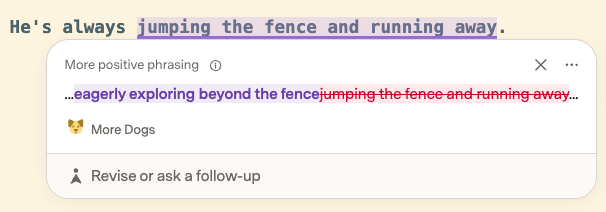
Comment cards can be used to provide context or more nuanced recommendations.
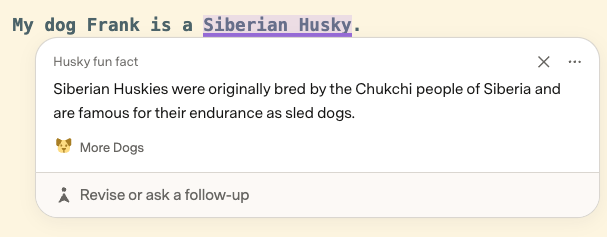
To add these annotations, simply mention them in your agent's instructions.
agent.addDefaultRoutine({
  name: "More dogs",
  trigger: {
    kind: sdk.DefaultTriggerKind.WhileWriting,
    condition: "The writing mentions a dog or a dog breed.",
  },
  instructions: `
    When the writing talks about a dog in a negative way, rewrite
    it to have a more positive spin.
    When the writing mentions a dog breed, add a comment with a
    fun fact about that breed.
  `,
});
Rewrites are plain text only
Rewrite suggestions can only include plain text as the suggested replacement text. It's not possible tu suggest alternative text that includes formatting, images, etc.
Paragraph-level rewrites
The while-writing trigger runs without user input, but sometimes the agent needs more information before it can suggest changes. Agents running in the chat panel can suggest rewrites, but not add comments.
Each rewrite applies to an entire paragraph and appears as a dot beside it. Hover over the dot to open the card, then review each paragraph's rewrite separately.
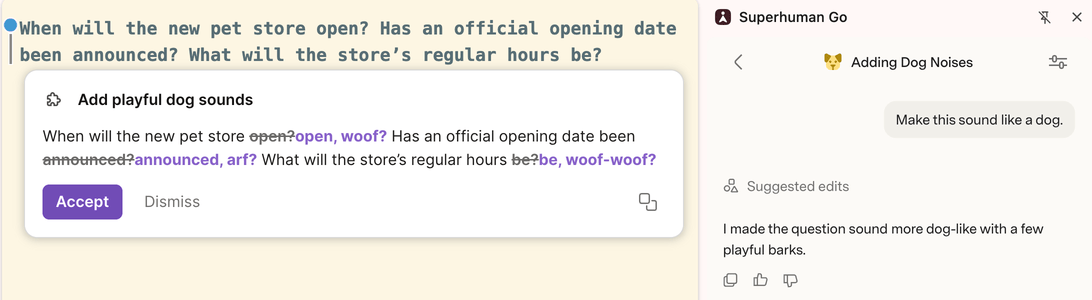
agent.setInstructions(`
  When the user asks to make their writing sound like a dog, rewrite it to
  include dog noises.
`);
Providing context
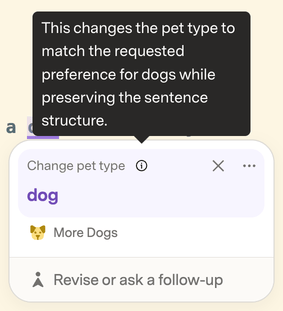
Screen annotations can provide context to the user through their title and/or explanation. The model fills these in as it's creating the annotation.
The title is shown at the top of the card and the explanation is shown when the user hovers over the info icon.
The title is shown at the top of the card and the explanation is shown in the body.
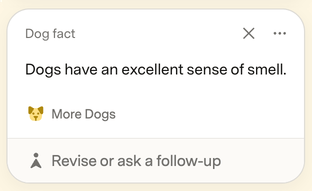
The explanation is shown at the top of the card (as a title).
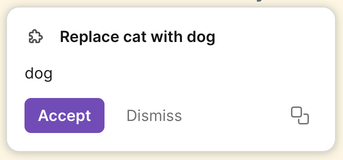
In underlined suggestion cards, explanations can contain rich text. They accept the same set of markdown formatting as chat messages. See the Chat guide for more information.