Managing versions and releases
Building a Pack is often an incremental process, and the platform provides a version and release mechanic to make it possible to add new features or fix bugs in a way that doesn't impact existing users.
Versions
Versions are like checkpoints for your code, and represent a unique build of your Pack that could be run in a doc or chat session. Versions and version numbers are private to the Pack maker, and not visible to other users that install your Pack. If you are familiar with Git, they are sort of like a Git commit.
A new version is created when:
- You press the Build button in the Pack Studio web editor, and the build completes successfully.
- You run
npx packs uploadusing the Packs CLI.
Many Pack versions
When working in the Pack Studio web editor the only way to test your code is to build it and try it out, therefore it's not uncommon to accumulate many Pack versions. While this may feel messy, rest assured it has no impact on how your Pack looks or works.
Version numbers
By default version numbers are automatically generated for you, as a set of incrementing whole numbers (1, 2, 3, etc). In various places throughout the user interface they are presented with a preceding "v" character, to indicate they are a version number ("v1", "v2", etc).
It is possible to manually set the version numbers, by calling the setVersion() method in your code:
export const pack = sdk.newPack();
pack.setVersion("1.0.5");
There are some restrictions to the version numbers you can select however:
- The version numbers must increase with each new build / upload.
- The version numbers must follow the SemVer standard, meaning they must be of the form
1,1.2, or1.2.3. - If you make a user-visible change to your Pack the platform will enforce standards on your version number:
- A new minor version if you make a backwards-compatible change (add a new building block or parameter, etc).
- A new major version if you make a backwards-incompatible change (add a new request parameter, remove a building block, etc).
Version history
The History section in the Pack Studio shows a log of all past versions of your code, including when they were created and by who. For each version you can also download the code at that checkpoint or restore it.

Restoring a previous version simply loads the code from that version into the web editor, and you'll need to re-build that code (and hence create a new version) to actually change the state of your Pack.
Pack CLI doesn't upload source code
The download and restore options aren't available for versions created using the Pack CLI. The CLI doesn't upload the source code, only the compiled version of your Pack. When developing using the CLI we recommend you use a version control system like Git to store a history of your source code.
Releases
Releases are used to determine which version of your Pack should be made available to your users. For example, as you are developing and testing a new feature you may create multiple new versions of your Pack, but your users will not see any of those changes until you make a new release. This allows you experiment and iterate on your code and only share that work when it's ready.
A new release is created when:
- You click the Release button in the Pack Studio web editor.
- You click the Release version option in the History tab of the Pack Studio.
- You run the
npx packs releasecommand using the Pack CLI.
Each release is just a pointer to an existing Pack version, so to release new code you must create a version first and then release it. Additionally, each new release must use a newer version than that of the current release.
Corresponding versions
To determine which version of your Pack a given release corresponds to, visit the History section of the Pack Studio. Release numbers will be displayed next to their corresponding version, and the Released tab can be used to filter the versions to just those that were released.

Rollout
Creating a new release only takes a moment, but it can take much longer for it to reach your users. A few minutes after you create the release the platform begins the process of upgrading existing docs that use your Pack to the new release. This process can take anywhere from a few minutes to a few hours, depending on how many docs need to be processed.
Rollbacks
Let's say you release a new version of your Pack only to discover that it has a critical bug. Given how versions and releases work in Packs, to rollback to the previous release you must:
- Restore your code to the point of the previous release's version (see Version history above).
- Create a new version using that code.
- Create a new release using that version.
To your users it will appear as if you've released a new version of your Pack, but it will contain the code of the previous stable version.
Which version is in use
There are three different options for determining which version of the Pack to use:
- Latest release - Use the version associated with the latest release of the Pack
- Latest version - Use the latest version of the Pack, even if it isn't released
- Specific version - Pin to a specific version of the Pack ( Docs only)
When someone installs a released Pack, they will default to the Latest release option. If the Pack has no releases yet, Pack admins and testers can install and they will default to the Latest version option.
You can change which version is used at any time.
To change the version used by Go:
- Open the connector's settings screen.
- Click the gear icon .
- Change the Pack version option as desired.
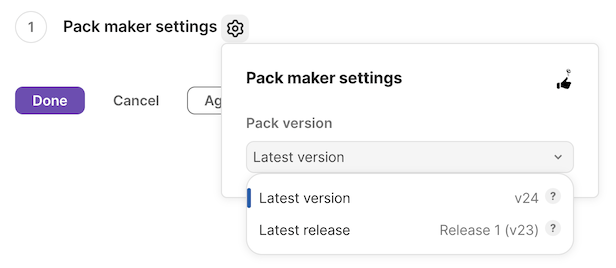
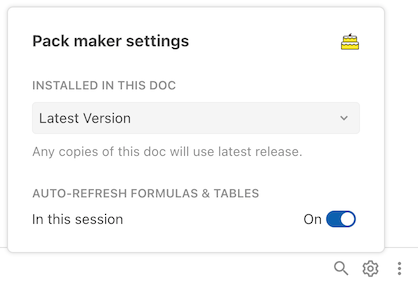
To change the version used in the doc:
- Open the Pack maker tools panel.
- Click the gear icon on the panel.
- Change the Installed in this doc setting as desired.
Don't use latest version for published docs
The Latest Version option is useful while developing and testing, but you must switch to Latest Release before you can publish a doc or convert it to a template — and once a doc is published or turned into a template you won't be able to change the version at all. Using Latest Release also ensures you don't break your doc as you change your Pack, and that users get the same behavior when they copy it.