
Skip to content
Design Toolkit
  • Pages
    • Design Toolkit Introduction
    • Meeting Agenda
    • Selkirk Drawing Stages
      • icon picker
        Drawing Stage One - Concept Art
      • Drawing Stage Two - Presentation Art
      • Drawing Stage Three - Initial Price Estimate
      • Drawing Stage Four - Firm Pricing and Corporate Client Drawings
      • Master Drawings
    • Selkirk Drawing Template
    • Selkirk Library Icons & Specifications
    • Drawing Standards
      • Fascia Signs
      • Channel Letters & Channel Shapes
      • Corporate Clients
      • Photo Overlays
      • Pylon Signs
      • Fuel Canopy
    • Materials
      • ACM / Aluminum Composite Material
      • Acrylic
      • Aluminum
      • Coroplast
      • Expanded PVC
      • Flex Face
      • MDO / Medium Density Overlay
      • Polycarbonate
      • Polystyrene
      • Steel Columns
    • Standard Size Guidelines
      • Channel Letters
      • Painting
      • Router Size Limitations
      • Shipping Guide
      • Thermal Forming / Molding
    • Selkirk Terminology
    • Sign Types
    • Pylon Sign Details
      • Pylon Types & Terminology
      • Pylon Base & Column Details
      • Pylon Cabinet Mounting Options
    • Cabinet & Fascia Details
      • Cabinet Types & Terminology
      • Single Sided Sign Cabinets
      • Double Sided Sign Cabinets
      • EX and SS Sign Extrusions
      • Single Face Illuminated Cabinet Standards
    • Channel Letter Details
      • Front-lit Channel Letter Materials
      • Front-lit Channel Letter Guidelines
      • Halo Lit Channel Letter Materials
      • Halo Lit Channel Letter Guidelines
      • Front and Halo Lit Channel Letter Materials
    • Routed Letter Details
    • Push Through & Routed Face Details
    • Preparing Files for Production
      • Production File Overview
      • Files for Digital Printing
      • Files for Vinyl Plotting
      • Files for CNC Router
      • File Resolution Guidelines
      • File Type Requirements
      • Raster vs. Vector
    • Minimum Survey Requirements
      • Face Replacements for Existing Frames
      • Frame Replacements for Existing Cabinets
      • New Inserts for Existing Two Column Pylon
      • New Columns for Existing Bases
      • New Cabinet for Existing Single Column Pylon
      • New Signage for Gas Canopy
      • Building Signage
      • Printable Quick Reference Guide for Minimum Survey Requirements
    • Signopedia

Drawing Stage One - Concept Art

Stage one drawings are not intended for pricing.
Last edited 1022 days ago by Adam Doll.

What is a stage one drawing?

Stage one drawings illustrate a sign concept. At this stage the drawing will not provide sign specifications or dimensions. It is used to develop a design before spending a lot of time getting into the fine details.

When is a job started at stage one?

The required signs are not in the library or we are working with a new client.
We are working with one of our corporate clients but it is a new design.
The customer has not provided any drawings or ideas so we are starting from scratch.
We do not know what design the customer will like.
Several options need to be developed.
If the client is a tenant in their location, ask the Project Manager (PM) or Project Coordinator (PC) if we have landlord sign criteria yet. The landlord sign criteria may restrict what sign types will be approved.

This is an example of a stage one pylon design for Calgary CO-OP.

The pylon design below is a very refined design in an illustrated environment - a photo overlay may also be used if it is available.
The stage one drawing illustrates the design concept only. A maximum of three concepts should be developed, as more than that can complicate the process and prevent the customer from making a decision.
A corporate client such as Calgary CO-OP would normally get a corporate program stamp on the right sidebar, rather than the drawing stage stamps. The drawing stage stamps have been used for this example to show the process of moving through the different drawing stages.
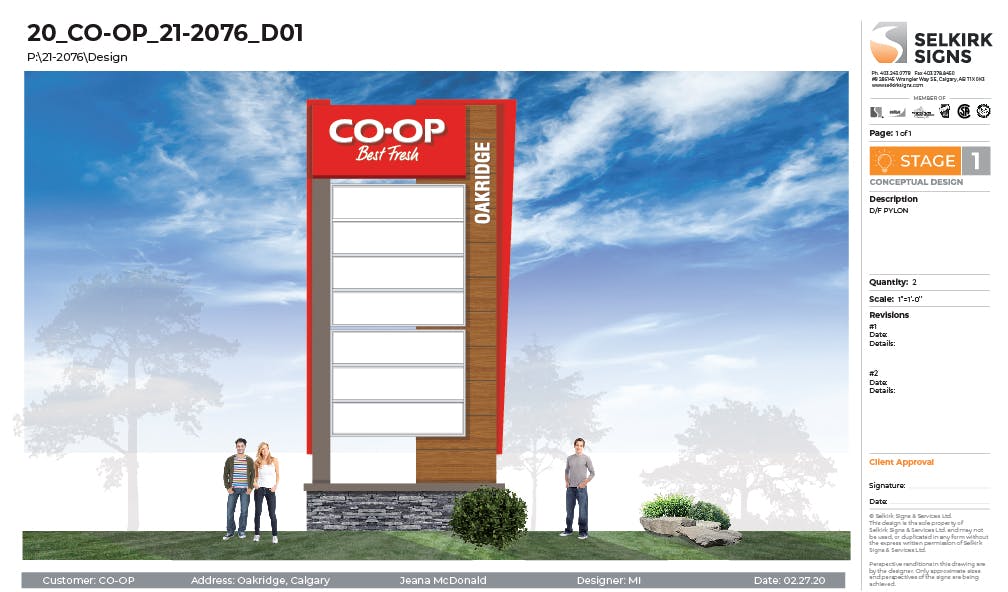
Stage 1.jpg
 
Want to print your doc?
This is not the way.
Try clicking the ⋯ next to your doc name or using a keyboard shortcut (
CtrlP
) instead.
