




10 min read
Superhuman Docs AI for meetings
Take your meetings and the follow-up to the next level with Docs AI.
- One-on-one meetings.
- External meetings with partners, vendors, or customers.
- Recurring team meetings.
- Goal-setting & brainstorming meetings.

What you’ll get
- Ideas for using Docs AI before, during, and after meetings.
- Auto-generated summaries, action items, and follow-ups.
- Practical prompts you can adapt to your own workflows.

What you’ll use
- Docs AI
- AI blocks
- AI columns
- Buttons
- Packs
Meet Docs AI
Docs AI is built into every part of your Doc. It can write and edit content, answer questions about your work, build and update tables, add views, and take action, all in plain language, without leaving your workspace. In this guide, you'll use three specific capabilities:- Docs AI works directly on your canvas. Ask it questions, generate content, or give it instructions, and it acts on your Doc, by editing pages, inserting callouts, summarizing content, and more.
- AI columns generate, summarize, classify, or transform data row by row across a table. Set a prompt once and it applies to every row, past and future.
- AI blocks analyze and synthesize information across an entire page or table, producing a single consolidated output like a summary, action item list, or goal set.
One-on-one meetings: Syncs with purpose
One-on-ones are most effective when you can focus on the conversation instead of trying to remember what happened last time. Docs AI can help you review progress, identify action items, answer questions about previous discussions, and prepare for upcoming topics.If you follow the meeting pattern of adding one row per topic, Docs AI can easily extract summaries and action items for each topic.
AI action items help you align on next steps
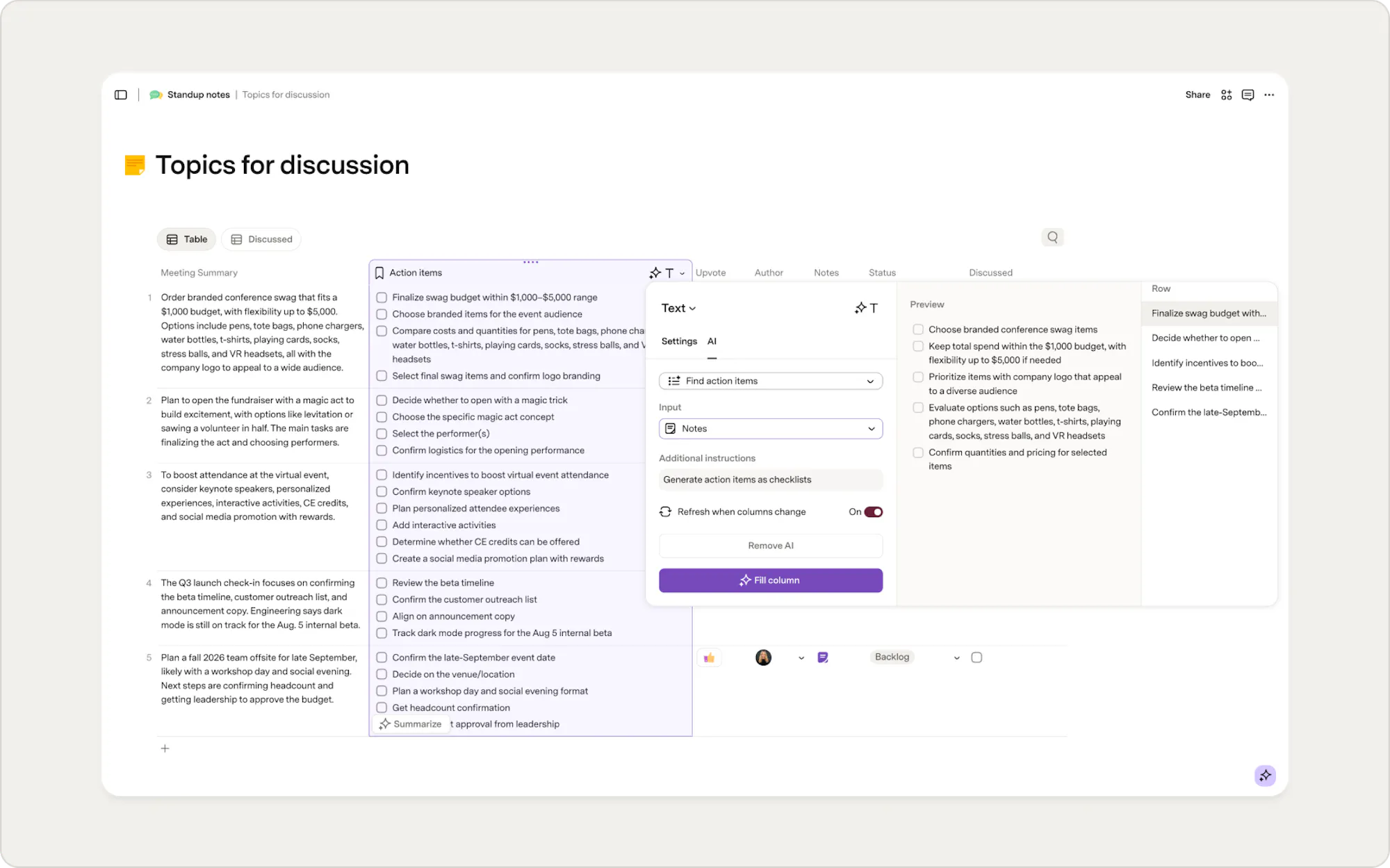
One-on-ones often end with good intentions but unclear follow-through. AI columns can automatically identify action items from your notes, helping both people leave the meeting with a shared understanding of what's next. Simply describe what you want AI to look for, and it will generate action items for every row in your table. You can refine the results with additional instructions, such as only including tasks with a clear owner or keeping each action item concise.To create an AI-powered action items column:
- Add a new text column to your notes table and name it Action items.
- Select Add AI from the column options.
- In the Additional instructions box, describe the action items you’d like to generate.
- Preview the results and refine the prompt if needed.
- Select Fill column.
Try prompts like:
- Identify action items and owners from these notes.
- Only include action items with a clear owner.
- Only pull action items assigned to Polly and Felix.
- Write each action item in as few words as possible.
Summaries can continue the conversation (instead of repeating it)
Before every one-on-one, you probably spend a few minutes trying to remember what was discussed last time. AI columns can automatically summarize meeting notes so you can quickly review progress, decisions, and open questions before the conversation starts.Create AI-powered meeting summaries:
- Add a new text column to your notes table and name it Summary.
- Select Add AI from the column options.
- In the prompt box, describe the summary you'd like to generate.
- Preview the results and refine the prompt as needed.
- Select Fill column.
Try prompts like:
- Summarize these notes in one sentence.
- Summarize the key decisions and next steps from this discussion.
- Write a short summary focused on progress since the last meeting.
- Summarize this discussion in a format I can review before my next one-on-one.
Quick answers will focus your sync
Whether you're meeting with your manager or a teammate, Docs AI can help you quickly revisit past conversations, prepare for upcoming topics, and identify questions worth discussing.Ask questions about your meeting history:
- Open Docs AI using the purple sparkle icon in the bottom right corner.
- Set the context to your meeting page.
- Ask questions about previous discussions, decisions, or upcoming conversations.
Try prompts like:
- When did we say the marketing campaign is launching?
- Who did my manager recommend I speak with?
- Based on our previous discussion on mentorship, what follow-up questions should I ask?
- I want to ask my manager about growth opportunities. How should I approach the topic?
External meetings: Follow up faster
After a great conversation with a customer or partner, keep the lines of communication open. Docs AI can draft emails, team updates, and suggested agendas—so you’re ready for that next discussion.Same-day follow-up with customized email drafts
The faster you follow up after a customer or partner conversation, the easier it is to keep momentum going. AI columns can turn your meeting notes into personalized follow-up emails, helping you capture key takeaways and next steps while the conversation is still fresh.
Bring meeting details into your doc
You can sync in your meeting details using the Salesforce Pack or the Google Calendar Pack.
Create AI-powered follow-up emails:
- Add a new text or canvas column and name it Follow-up email.
- Select Add AI from the column options.
- Choose Custom prompt.
- In the prompt box, describe the email you'd like to generate.
- Preview the results and refine the prompt as needed.
- Select Fill column.
Try prompts like:
- Draft a short, friendly follow-up email based on these meeting notes.
- Summarize the discussion and highlight the agreed-upon next steps.
- Ask for availability for a follow-up call next week.
- Mention that I'll follow up again if I don't hear back.
- Write a casual follow-up email and sign it from Katy.
Automate updates to your team
Customer conversations often contain information that other teams need to know, from product feedback and feature requests to upcoming opportunities and next steps. AI columns can turn meeting notes into concise updates that are ready to share with your team.Create AI-powered team updates:
- Add a new text or canvas column and name it Team update.
- Select Add AI from the column options.
- In the prompt box, describe the update you'd like to generate.
- Preview the results and refine the prompt as needed.
- Select Fill column.
Try prompts like:
- Write a two- to three-sentence summary I can share with my team. Include key takeaways, product feedback, and next steps.
- Summarize this customer conversation for our account team. Include who I spoke with, what we discussed, and any follow-up actions.
- Write a short update for my team that highlights customer goals, concerns, and opportunities.
- Start with "Hi team," and summarize the key points from this conversation in a few sentences.
Recurring team meetings: Capture group insights
Keep everyone on track between meetings with a consolidated list of AI-generated summaries or action items. Easily share via Slack to give your team or functional partners visibility.Action items with AI block: Take action between meetings
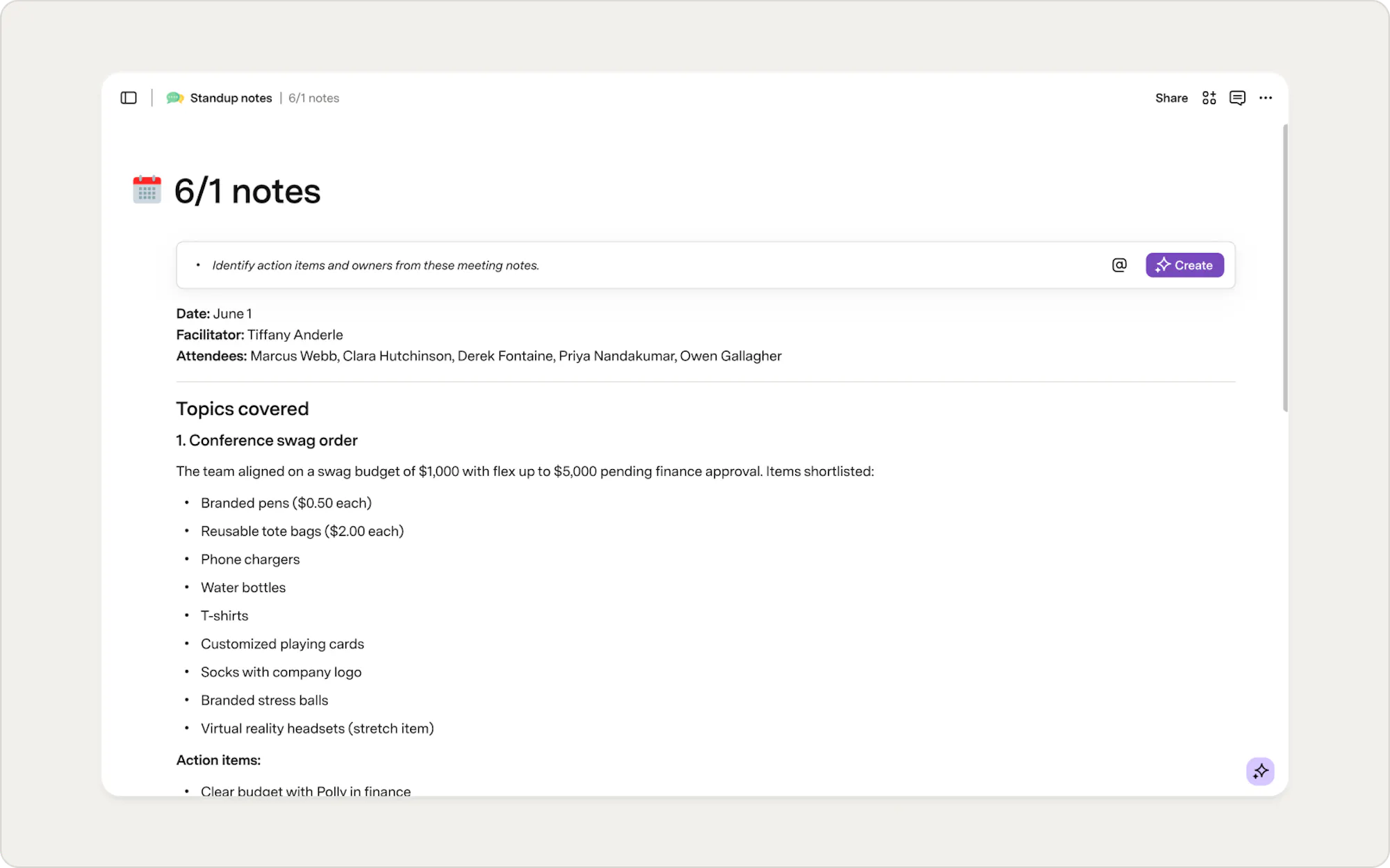
When action items are scattered across meeting notes, it's easy for important follow-ups to slip through the cracks. AI blocks can scan an entire page or table of notes and generate a consolidated list of next steps, making it easier for your team to stay aligned between meetings.Create an AI-powered action item list:
- Type /AI block and press Enter.
- In the prompt box, describe the action items you'd like to generate.
- Select the page or table that contains your meeting notes.
- Review the results and refine the prompt if needed.
- Select Create.
Try prompts like:
- Identify action items and owners from these meeting notes.
- List action items in as few words as possible.
- Only include action items that have a clear owner.
- Group action items by team or owner.
Summaries with AI block: Auto-generated visibility
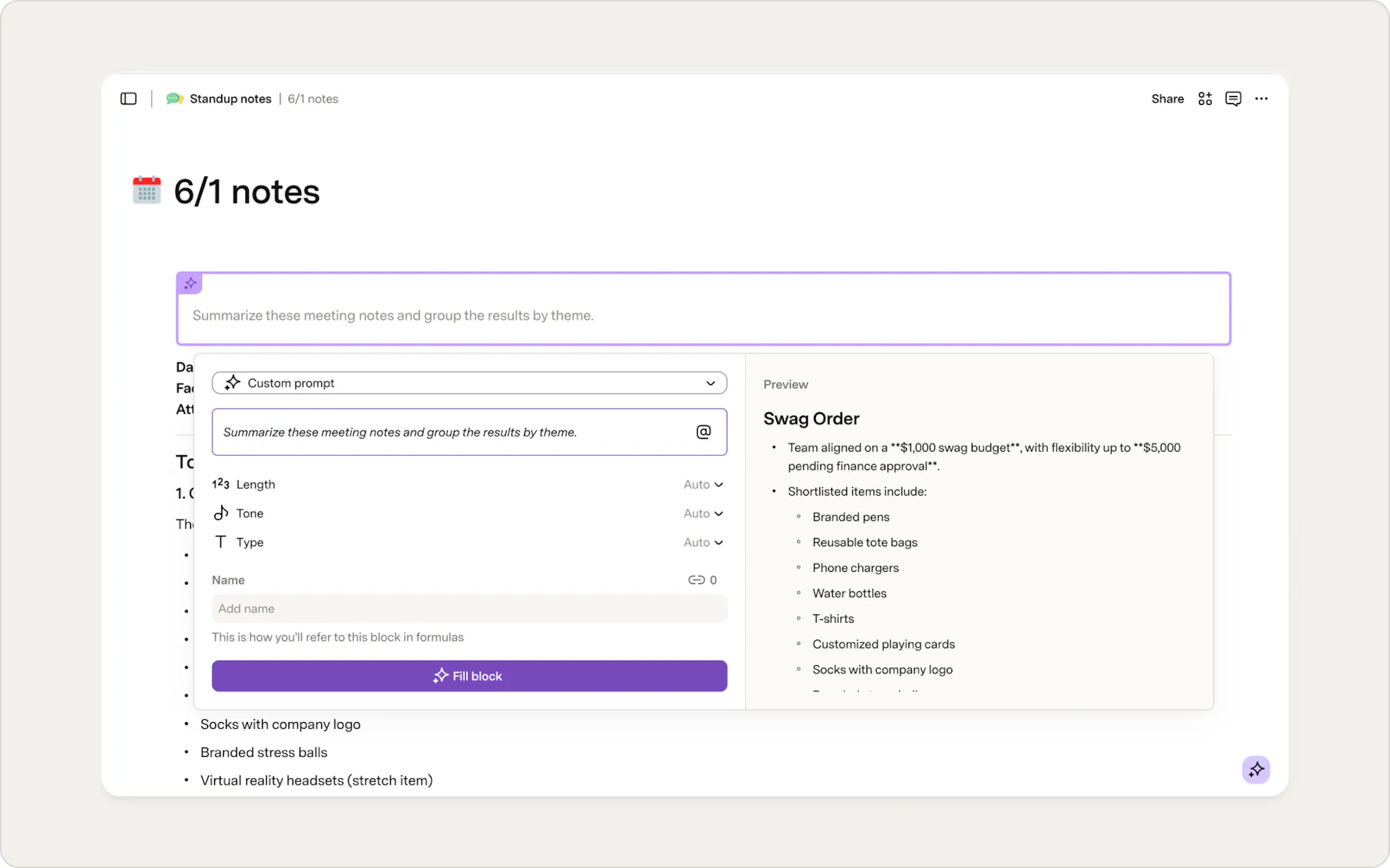
Meeting notes are most valuable when they're easy to revisit and share. AI blocks can summarize discussions across an entire page or table, helping your team stay aligned without having to read through every note.Create an AI-powered meeting summary:
- Type /AI block and press Enter.
- In the prompt box, describe the summary you'd like to generate.
- Review the results and refine the prompt as needed.
- Select Fill block.
Try prompts like:
- Summarize these meeting notes and group the results by theme.
- Summarize this week's meetings in two to three bullet points.
- Create a weekly team update based on these meeting notes.
- Start with "Marketing Team Weekly Meeting Summary" and then summarize the discussion in three bullet points.
- Highlight key decisions, risks, and next steps from these notes.
Share summaries automatically in Slack
Once you've created an AI-generated summary, you can share it with your team without leaving Superhuman Docs. Here's how:- Type /Slack and select the Post message button.
- If prompted, add the Slack Connector to your doc.
- In the Content field, insert your AI block.
- Choose the Slack channel and any additional settings.
- Save the action to create a push button that can share updates with your team.
Feedback & brainstorms: Create inclusive goals, faster
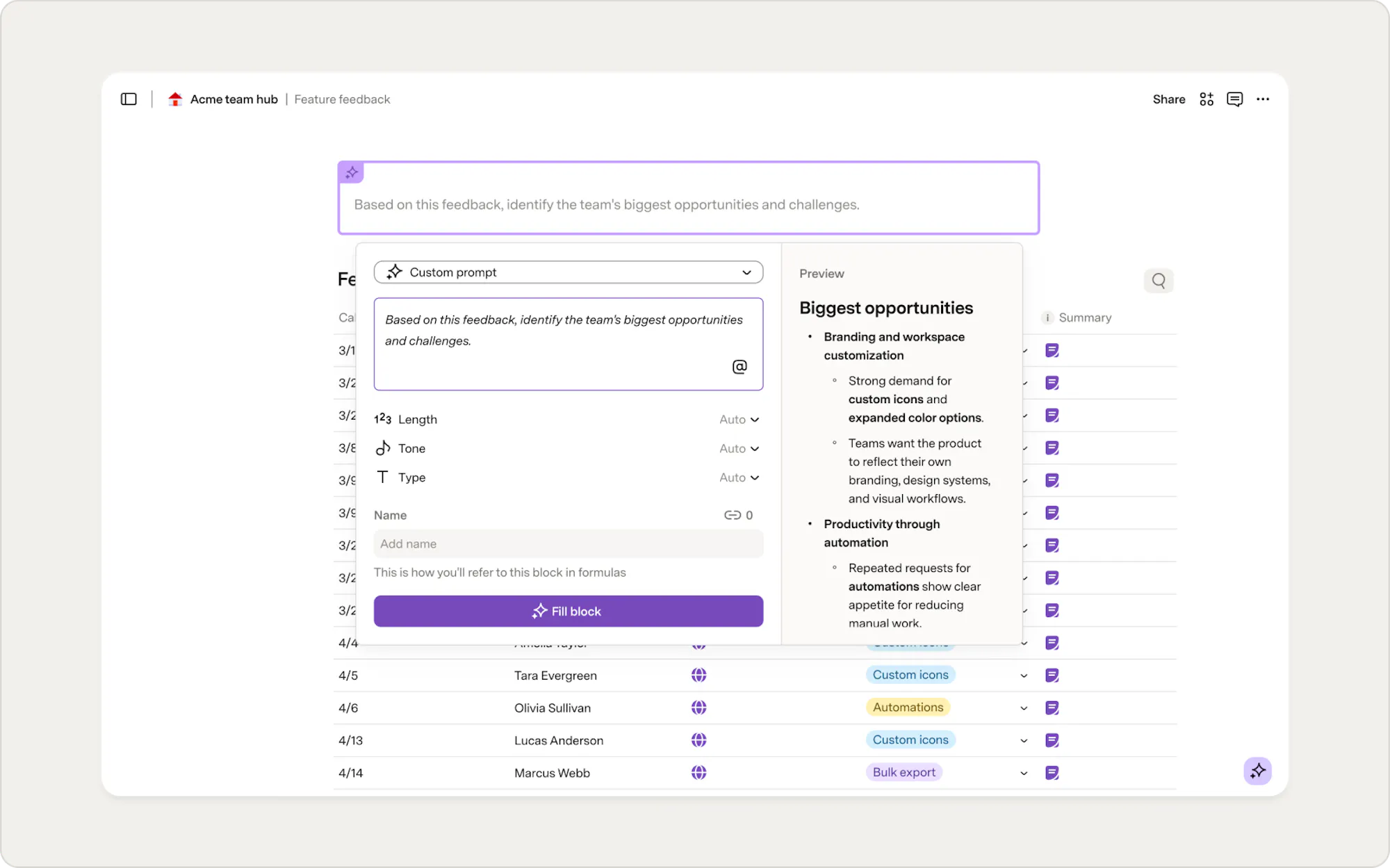
Collecting feedback is only half the process. The real challenge is identifying patterns, aligning on priorities, and deciding what to do next. AI blocks can help you synthesize team input, surface themes, and generate goals in minutes.Create an AI-powered feedback summary
- Have each team member add their feedback to a table. We recommend sentence prompts or separate columns for highlights and lowlights.
- Type /AI block and press Enter.
- In the prompt box, describe the outcome you'd like to generate.
- Select the table that contains your team's feedback.
- Review the results and refine the prompt as needed.
- Select Fill block.
Try prompts like:
- Based on this feedback, identify the team's biggest opportunities and challenges.
- Summarize the feedback, then suggest questions the team should discuss together.
- Based on the highlights, lowlights, and risks shared by the team, recommend two to three next steps.
What's next?
Closing the loop: Your meetings transformed
Meetings don't end when the calendar invite does. With Docs AI, you can turn conversations into action items, follow-ups, summaries, and goals that keep work moving forward. Use the examples in this guide as a starting point, then experiment with your own prompts and workflows. The more specific you are about the outcome you want, the more helpful AI can be.Explore these resources to learn more:
Was this helpful?
YesNo