



15 min read
Four ways to run meetings
Superhuman Docs flexible surface allows you to apply different schemas and patterns to your meeting doc. Choosing the right pattern can create the organization and interactions that your team is looking for.
The problem with most meeting note systems
Meetings are the heartbeat of a company. Running an effective meeting starts with a clear agenda, goals, and notes. So many meetings are poorly run — no clear agenda, derailed discussion, and notes without clear action items and owners. Most teams run meetings out of a forever-scrolling google doc, or many disparate docs, which creates three problems with meetings:- Undiscoverable: The link can be hard to find, because it’s disconnected from other work or notes.
- Inefficient use of time: Meetings often lack structure or don’t focus on important decisions or questions.
- Inclusion: The most senior person or the loudest often controls the meeting. Others don’t have ways to contribute topics, voice their concerns, and be heard.
Run your meetings more efficiently with Superhuman Docs
With Superhuman Docs, you have everything you need to design a more efficient meeting system for you and your team. The flexibility of Superhuman Docs' building blocks enable you can create a meeting doc in a few different ways. You can use tables to organize your meetings, or you can take notes in a free form on the canvas. You can create a single row in your table for each date, or for each topic. You can create ways for the team to add and vote on the agenda, or you can create a repeatable format for meetings. Here are a few key building blocks you can use when building your meeting doc:- Tables and doc search make it easy to organize and find your notes.
- Reactions and buttons make it easy to for anyone to contribute to adding to and voting on the agenda.
- Column types in tables make it easy to organize notes and meetings how you see fit - by date, topic, etc.

What you’ll get in this guide:
- An introduction to different meeting systems
- A framework for deciding which meeting system is right for you and your team

Features you’ll use in this guide:
- Tables
- Reactions and buttons
- Doc search
A quick guide to choosing which meeting pattern is right for you
- Pattern 1: One row per topic → If you want attendees to add and upvote discussion topics.
- Pattern 2: One row per meeting → If you have a lot of meetings want to organize all your notes.
- Pattern 3: One page per meeting → If you have a low volume of meetings and want a more freeform canvas (great if you’re just coming to Superhuman Docs from Google Docs).
- Pattern 4: One big page → If you want all your notes on a single page in a quick scratchpad.
1. Table with one row per topic (Recommended)
This first pattern, one row per topic, is a great choice for running meetings where you want meeting attendees to add and upvote discussion topics, like team meetings or executive staff meetings. With this pattern, you’ll create a table and add a row for each topic that you want to cover. A canvas column will make it so that the notes for each topic live right in the same row, making it easy to find notes. Reactions make it easy for team members to vote on which topics to cover. This structure sets expectations about what is going to be covered in a meeting, and creates a forum for anyone to contribute to the agenda. You can also add in voting and then sort by voting so that everyone feels heard in deciding what’s discussed. It also helps create structure with meeting notes that makes it easy find and reference notes. You can search the doc by topic and the notes for that topic will be right alongside that agenda item. Once you’ve built this out, it might look something like this: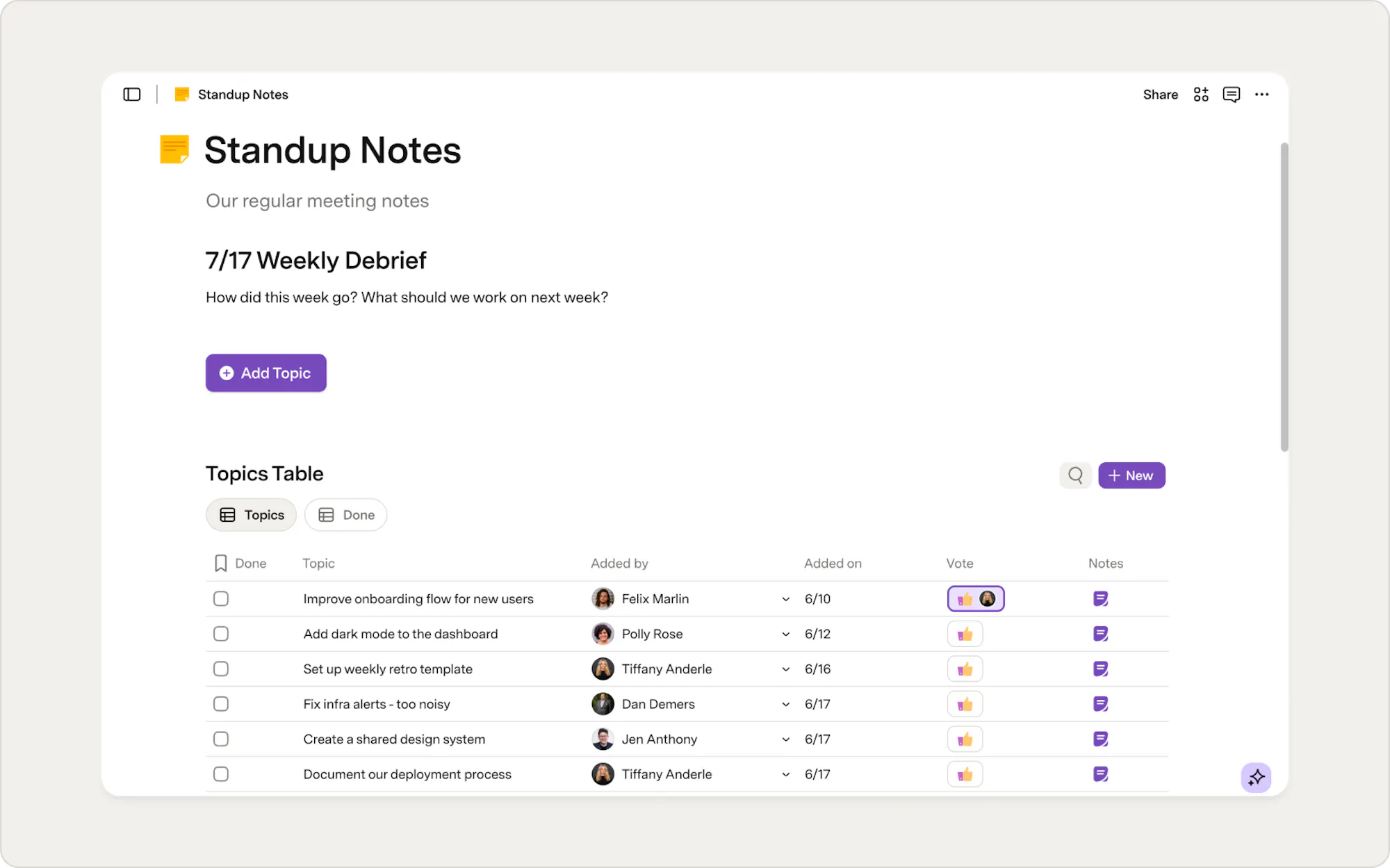
To build a meeting doc with this pattern, first build a table:
- Type "/table" into your doc and then select blank table.
- Change the column types by right-clicking the top of the column, and choose Column type.
- Add a Checklist to mark topics done.
- Add a Text column for topic.
- Add a People column to note who added the topic.
- Add a Date column to note when the topic was added.
- Add a Reaction columns to up vote discussion topics.
- Add a Canvas or Text column to take notes.
Then, build an add row button:
- Type "/Add row" on the canvas and click Add row.
- The settings for the button will automatically open.
- Under the table section of the button settings click on the dropdown and the select the name of your meeting notes table.
- You can change other settings like the color, icon, or label on the button from here as well.
2. A table with one row per meeting date
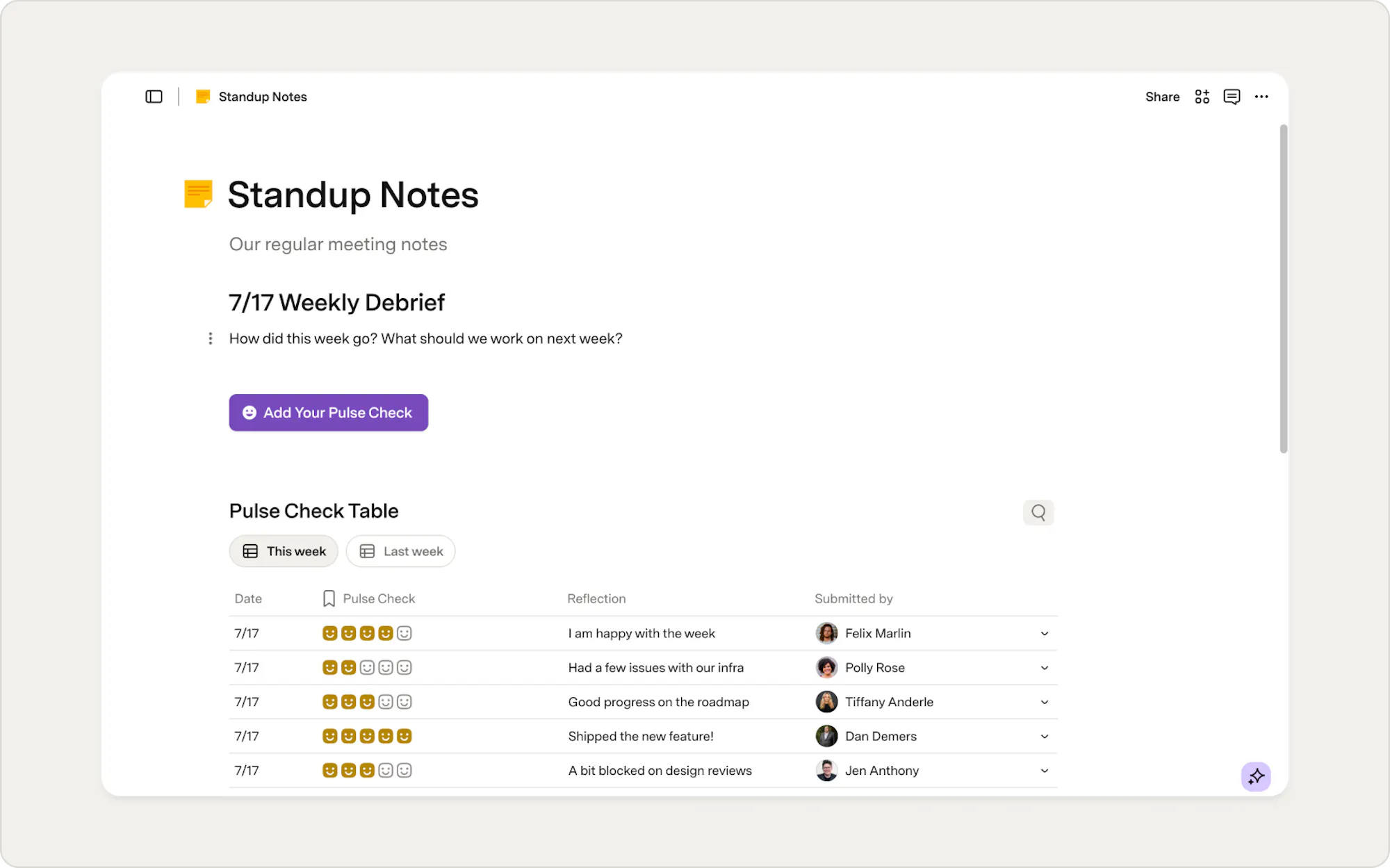
This second pattern is similar to the pattern above but centers your meetings around the date instead of topics. With this pattern, you’ll create a table with one row per meeting date, and then all of the notes for that meeting date will live within that row in the canvas column. This is a great solution if you have a high volume of meetings, and you’re optimizing for taking notes in a tidy, organized way. It will also help in making your team's notes easier to take, search, and reference. Here’s an example of what a meeting doc using this pattern might look like:To build a meeting doc with this pattern:
- Create a new table by typing "/table".
- Add the columns that you’ll need to run your meeting:
- Add a date column.
- Add a people column.
- Add a canvas columns for notes.
- Add a text column for actions like shown above.
- In the text column, use the slash command to add a checklist but typing "/checklist" and then selecting checklist from the menu.
- Open the canvas column for notes by clicking the icon within the row. It will open that cell like a page to make it easy to take notes for that meeting date.

Docs tip
This pattern also works well for recurring standups or team syncs, where each row becomes a running log of updates over time.
3. One page per meeting
If you’re looking for a way to centralize all your meeting notes into one place, but don’t necessarily need the structure of a table, then option three could be great for you. A one page per meeting structure can help you move scattered notes into one single place. With this pattern, you are going to separate the notes for each meeting into a different page, all within the same doc. A new page will get added for each meeting, and you can even create a template for your team to use for each new page. It's a great option for less frequent meetings with unstructured discussions. It's also a great solution for taking personal notes or journaling, where you have a single entry per day.To build a meeting doc with this pattern:
- Add a page for each meeting by going in the left-hand doc navigation and click + New page.
- Choose an icon and title for each page by clicking left of the title and then searching for an icon that suits you. You can also title your page the name of the meeting or the date to make it easy to find.
- Create navigation by dragging and dropping each meeting page underneath your table of contents page.
Docs tip
Add icons or cover images to your subpages and they will show up in the table of contents page in the subpage card.
4. One big page
The one-big page pattern is a great solution if you are looking for a simple, familiar way to run meetings and take notes. We most often see this pattern work well with something like a 1:1 doc. We recommend using collapse lists to condense information, multicolumn to put content like images right next to notes, and checklists to log action items right in your meeting notes.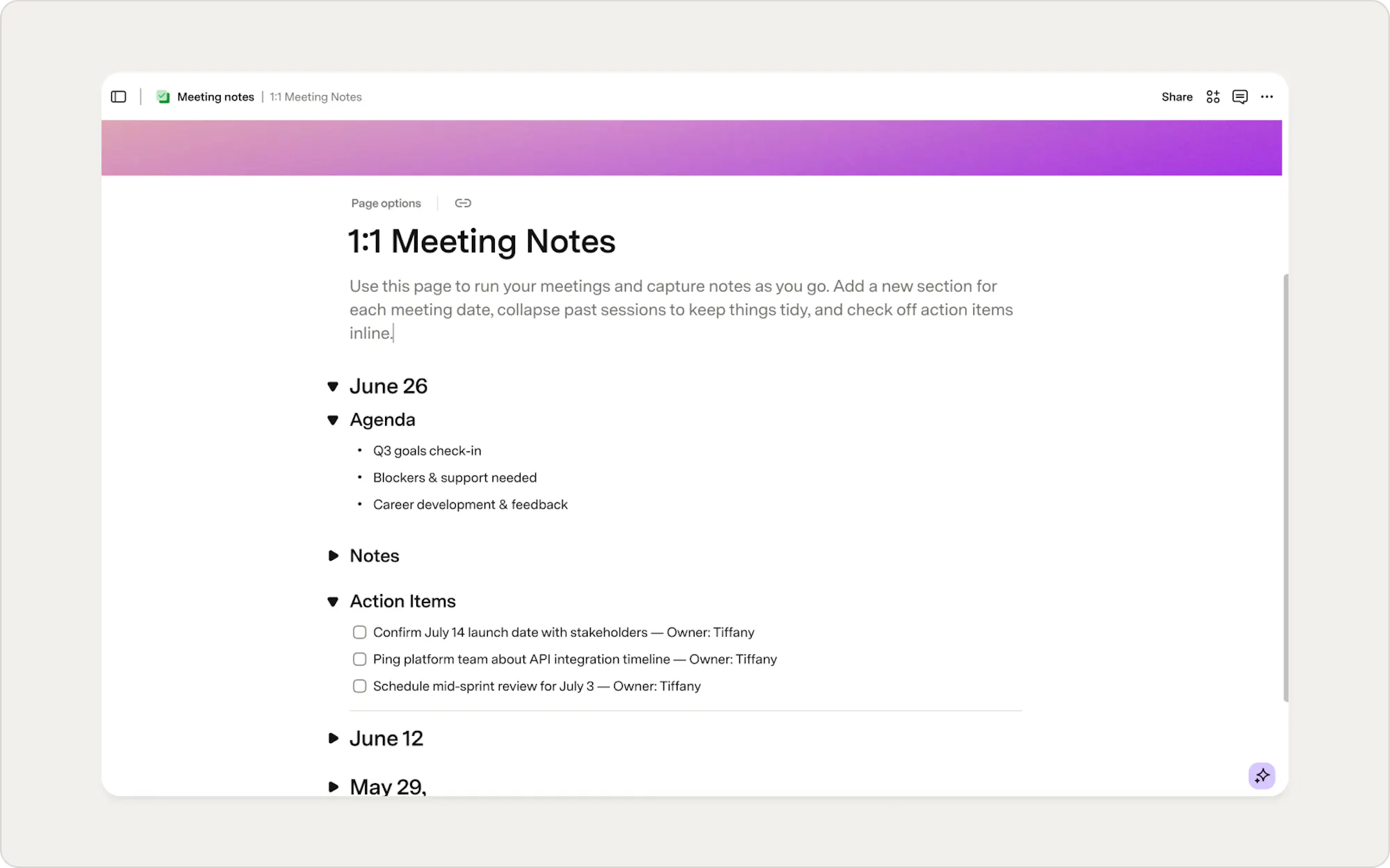
To build a meeting doc with this pattern:
- Add headers/sections by using the slash command by typing "/H1" to add a large header. In this example, each header is the date of a meeting, but this could also be the name of a meeting.
- Make collapsable headers by clicking the three-dot menu to the left of the header and then select Collapse content. It will make it so that any content smaller than your H1 header will be collapsed under it.
Bonus option: Creating a doc for meeting coordination
You can also use Superhuman Docs to build more complex meeting facilitation processes. Each company has specific nuances to how they run meetings and public forums and with Superhuman Docs you can make this facilitation feel like using a custom app.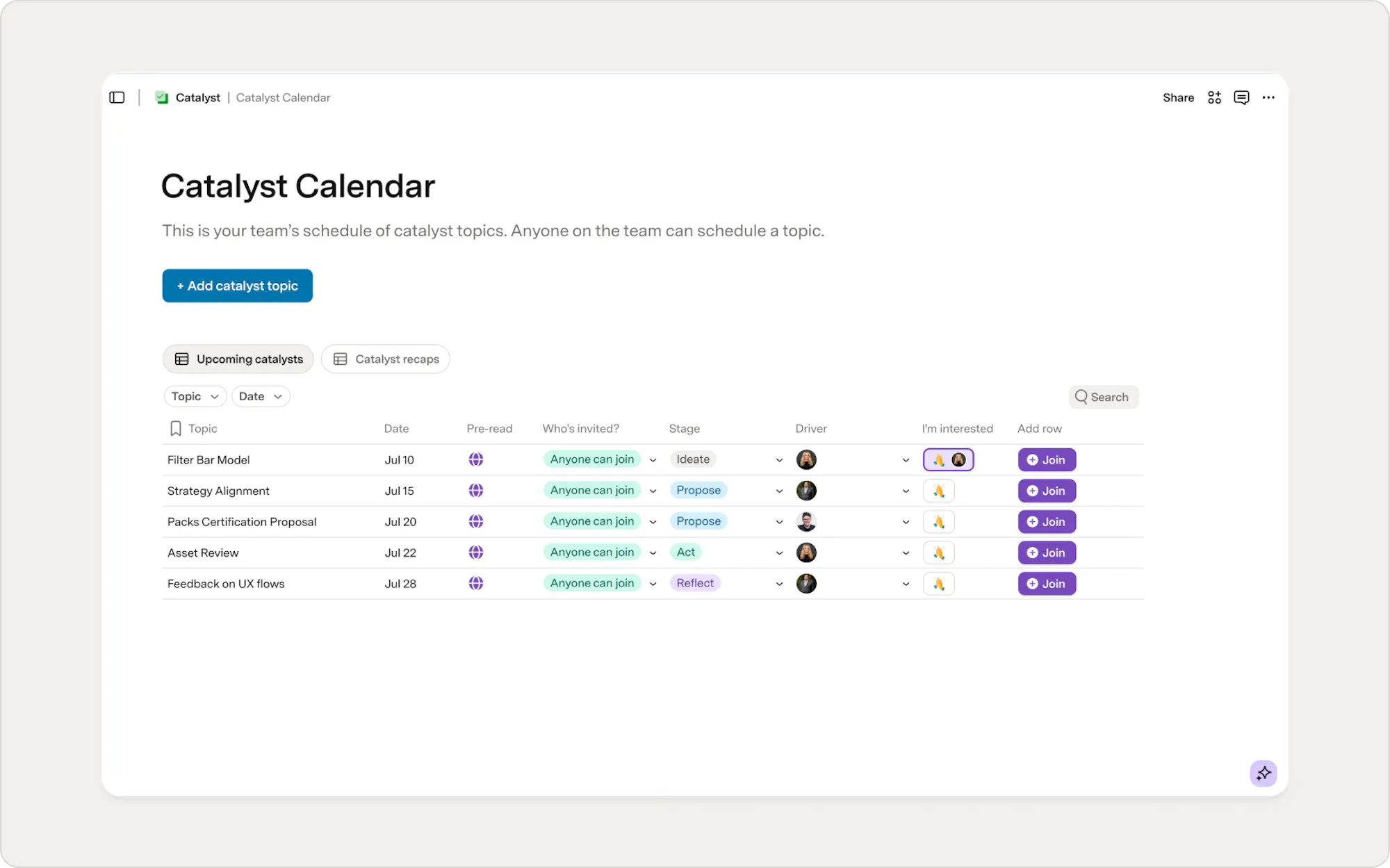
What's next?
Now that you have seen all of the options to build your meeting system in Superhuman Docs, you can get started building using the directions above or pick out a template from our Gallery. Don’t worry if the first pattern that you try isn’t right for you. The flexible surface makes it easy to redesign your doc. You can also think of these patterns as starting places for you, where you can add on any other blocks or features you need to make it just right for your team. Happy building!Was this helpful?
YesNo