




7 min read
11 AI prompts to try in Superhuman Docs
Prompts to sprinkle time-savings throughout your workday.
Meet Docs AI
Docs AI works directly inside your Doc, alongside your data and your team. It can write and edit content, build and update tables, pull insights from your data, draft communications, and take action, all in plain language, without leaving your workspace. AI also shows up in a few other places:- AI columns generate, categorize, summarize, and transform data in tables.
- AI blocks analyze large amounts of content to surface action items, themes, summaries, and insights.

Prompting tips
You don't need special AI vocabulary to get good results. In fact, the best prompts are often the most straightforward. When writing prompts, try:
- Describing the outcome you want, not the steps to get there.
- Being specific about format.
- Iterating on the result. Follow up with requests like "make it shorter," "add more detail," or "use a friendlier tone."
- Using the context already in your doc. Docs AI can understand the content you're working with, so you can often reference existing tables, pages, and text instead of explaining everything from scratch.
Brainstorm with Docs AI
Get suggestions
Use Docs AI as a quick thought partner for a second opinion. Prompt: "What are the top three pros and cons of this plan?" AI feature used: Docs AIGenerate options your team can vote on
Turn a decision into a structured list and add a reaction column so your team can weigh in without a meeting. Prompt: "Generate 20 name options for the new image editing tool. Draw from the Product Brief page and create a table with a reaction column for voting." AI feature used: Docs AI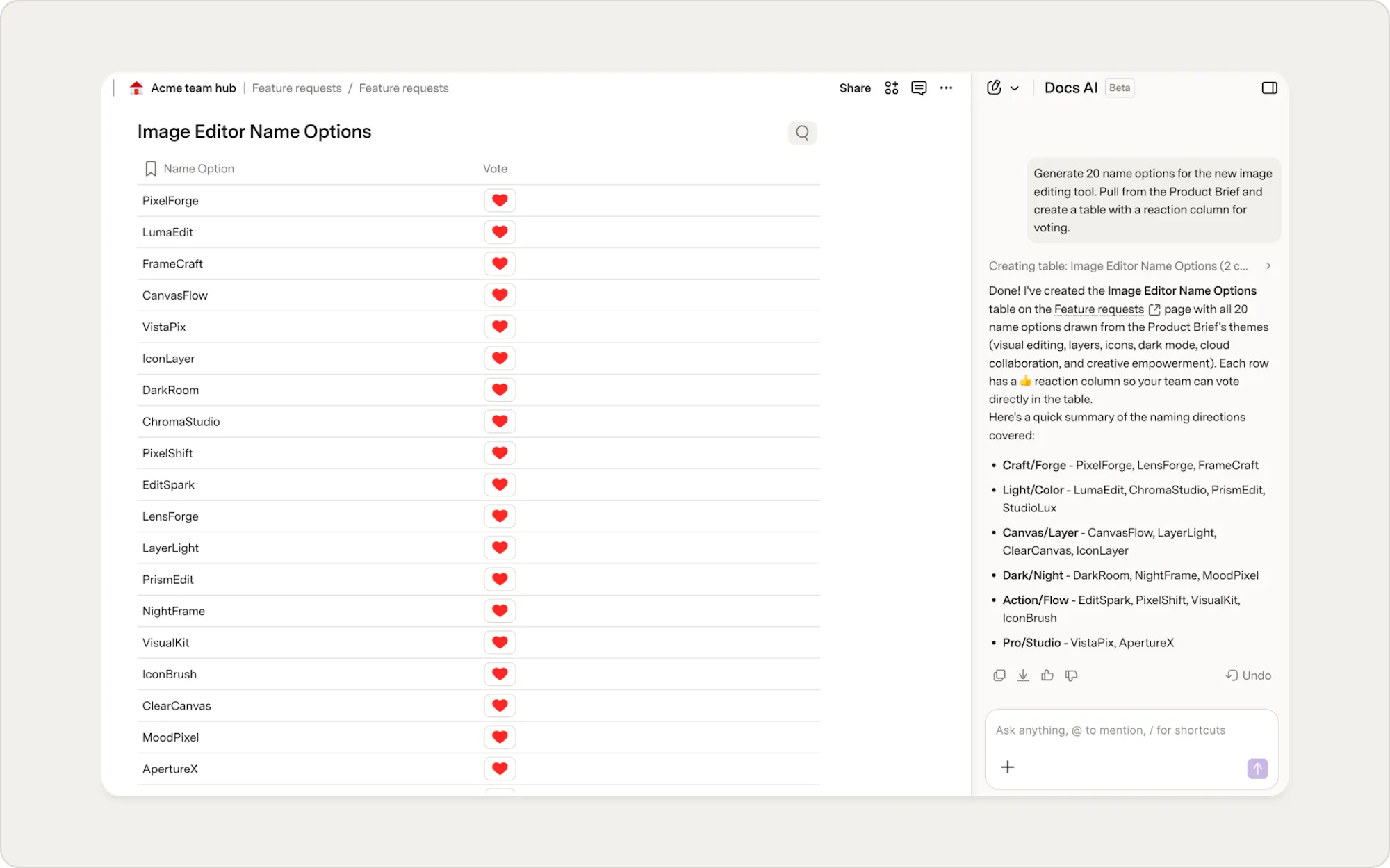
Format and change content
Format text
Make key information stand out instantly. Prompt: "Bold the key words." AI feature used: Docs AIConvert a table to an article
Expand table data into a longer form, or convert it to bullet points. Prompt: "Turn this table into a clear, friendly article for new customers." AI feature used: Docs AI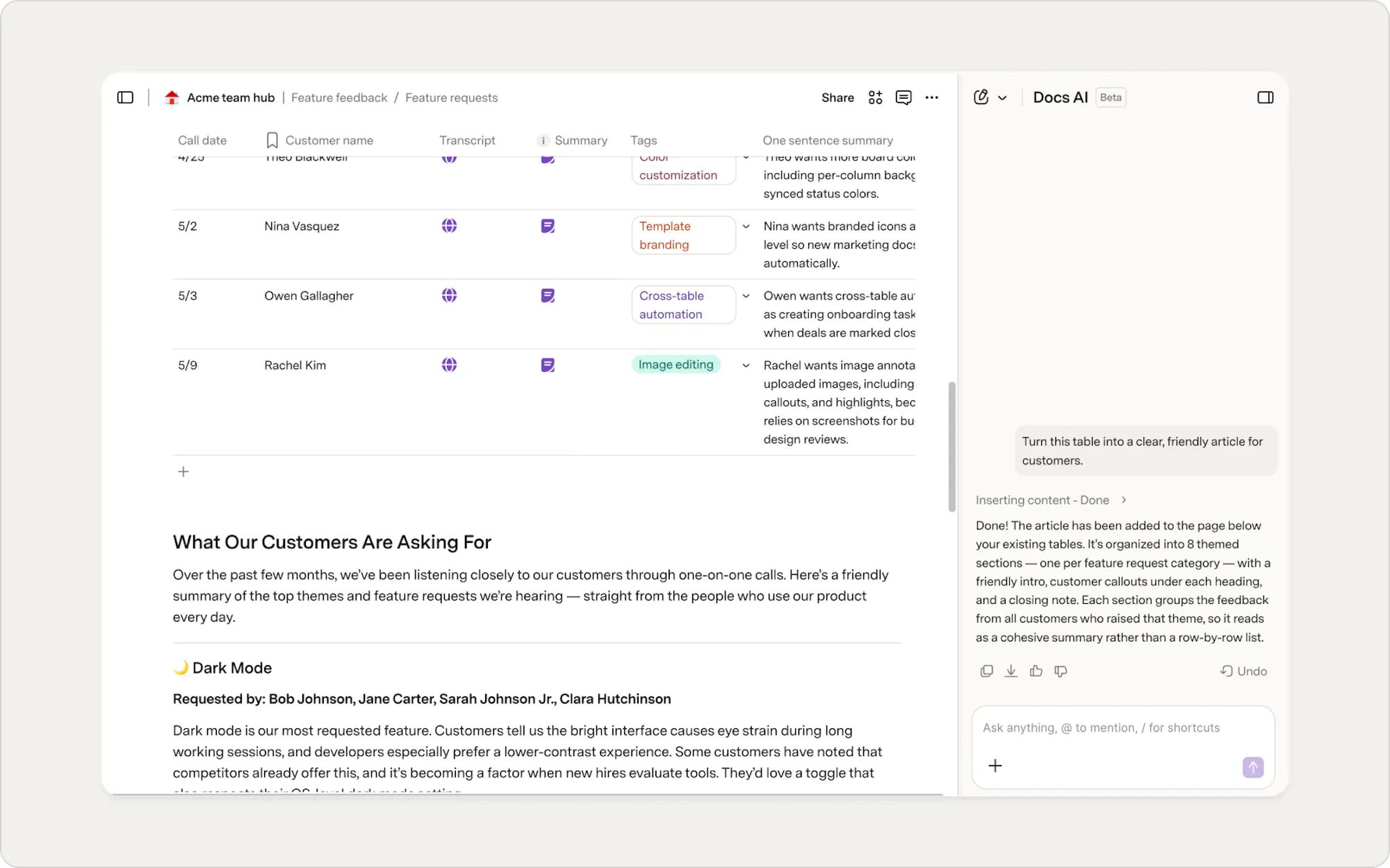
Convert bullet points to a table
Turn rough notes into something structured and usable. Prompt: "Convert these bullet points into a table." AI feature used: Docs AICreate or clean up data
Generate sample data
Create a table from scratch and fill it with sample data. Prompt: "Make a table of 10 fake names, email addresses, titles, and companies." AI feature used: Docs AICreate a table of dates
If you’re building a dataset, Docs AI can provide a starting point. Prompt: "Make a table of dates from 6/1/2026 to 7/08/2026." AI feature used: Docs AIClean up your data
If your data is inconsistent, AI columns can help tidy it up. Simply describe the output you want, and Docs AI will use the context of your table to generate consistent results. Prompt: "Tidy names so they follow a First name Last name format. Remove any middle names or initials." AI feature used: Docs AIGet quick insights
Get info on a new topic
If you're exploring a new topic, get quick insights that you can add to your doc. Prompt: "What are 10 things IT admins care about when evaluating new software? Make it a table." AI feature used: Docs AIAuto-tag and classify data
Categorize large amounts of information in seconds. Prompt: "Label each customer comment as Feature Request, Bug Report, Question, or Praise." AI feature used: AI columnsFind action items
Turn meeting notes, project updates, or customer conversations into a clear list of next steps. Prompt: "Identify the action items, owners, and due dates from this content." AI feature used: Docs AINow what?
Pick one prompt and try it in a Doc you're already working in. Ask Docs AI to summarize a table, clean up a list of names, generate a draft, or answer a question about your work. Once you see how much time it saves on a small task, it's easy to find more places to use it. For more prompt-writing tips and feature walkthroughs, check out getting started with Docs AI guide.Was this helpful?
YesNo