




15 min read
Migrating from Quip
A step-by-step guide for a smooth migration from Quip to Superhuman Docs.

What's covered:
- Preparation steps
- Step-by-step import instructions
- Import considerations

What you'll use:
- Quip Personal Access Token
- Superhuman Docs' Quip Importer
Before you import
Before you run your first import, take a moment to get oriented. This section helps you understand how Superhuman Docs organizes content, confirm your access and setup, and make a few small decisions that can prevent surprises later. A little preparation here goes a long way once your content lands in Superhuman Docs.Understand how Superhuman Docs organizes your information
Quip and Superhuman Docs both organize information, but the building blocks differ in meaningful ways.In Quip:
- The top-level container is a folder.
- Folders contain files (documents, spreadsheets).
- Each file stands alone and behaves independently.
In Superhuman Docs:
- The top-level container is a doc.
- Docs contain pages.
- Pages can contain subpages, and those subpages can contain deeper nested pages.
- Related content can live together in a single doc instead of across many separate files.
Why this matters for your import
When you import a Quip folder into Superhuman Docs, everything comes together in a single doc. Each file becomes a page, and any nested folders become subpages. Nothing gets lost along the way. In other words, your structure stays intact. Only the name changes. The upside is that you now have much more flexibility to organize related content, keep work connected, and build workflows that live comfortably in one place rather than across scattered files.
Import related files together
If your Quip workspace has collections of files that naturally belong together, like project docs, planning materials, or meeting notes, import them as a folder. They’ll arrive together in Superhuman Docs as a unified set of pages within a single doc, ready to use and easy to navigate.
Make sure you have the proper access
Before you start, confirm you have the proper access in both Quip and Superhuman Docs. A quick check here prevents authentication issues later.- Quip access: You can open the workspace or folders you’re importing (not as a guest).
- Superhuman Docs access: You’re a Doc Maker or Editor in your Superhuman Docs workspace.
- Quip admin configuration: Personal Access Tokens are enabled in the Quip Admin console.
Review your Quip content
A quick review of your workspace in Quip helps ensure that only the content you truly need moves over, and everything arrives organized and ready to use in Superhuman Docs.Decide what to keep:
- Keep the content your team still uses.
- Archive anything outdated.
- Note any documents with live apps.
- Flag large spreadsheets (around 50K rows) or folders with deep nesting.
Then, tidy up your data:
- Combine duplicate docs or spreadsheets.
- Clear out old or resolved comments.
- Spot-check internal links.
- Double-check permissions.
Save a backup
Create a backup export from Quip (Settings → Export) before making structural changes to your workspace.
Document your current workflows
Take a moment to map out how your team actually works today. This makes it easy to rebuild important systems in Superhuman Docs, and often, it’s the moment many teams discover opportunities to simplify or improve their processes. Consider noting:- Tools your Quip docs connect to, like Slack, Salesforce, or Jira.
- Documents that rely on live apps.
- Complex formulas, references, or calculated columns to recreate.
- “Power users” who rely heavily on specific workflows.
- Reminders, triggers, or automations your team uses.
What content imports
The good news: everything you care about in Quip comes with you. Your content is imported in full, so you can pick up where you left off and make any refinements once it's in Superhuman Docs. During import, Superhuman Docs brings over:- Your document and folder structure as pages and subpages.
- Spreadsheets and tables with all data preserved as grids.
- Comments, along with the author and timestamps.
- @Mentions and internal links between documents.
User mapping
Superhuman Docs also takes care of mapping people for you. During the import, users are matched to Superhuman Docs accounts by email address, so ownership, comments, @mentions, and person references stay intact. If a Quip user already exists in your Superhuman Docs workspace with the same email address, Superhuman Docs automatically links the imported content to them. If a Quip user doesn’t exist in Superhuman Docs yet, Superhuman Docs creates a placeholder using their email address. This keeps comments, mentions, and person fields intact even before the user joins. Once you invite that person to your workspace, Superhuman Docs automatically replaces the placeholder with the real user and updates all references.What doesn’t import
Before jumping in, here’s the scoop: a few Quip features don’t import one-to-one, and some styling will get a fresh look in Superhuman Docs. None of these blocks your migration, and most of them take a moment to adjust. Why call it out now? Knowing what won’t come over one-to-one makes the whole process more seamless. You’ll spend less time wondering “Is this supposed to look different?” and more time getting your workspace set up the way your team works best. Here’s a rundown of what doesn’t transfer one-to-one and what to expect.FILE columns in Project Trackers
Most column types in Quip’s Project Tracker import to matching column types in Superhuman Docs. FILE columns are the exception. Quip’s API includes references to the files but not the file data itself. After your import, you can re-upload the missing files directly into Superhuman Docs or convert the FILE column to a Link column that points to files stored in a cloud service.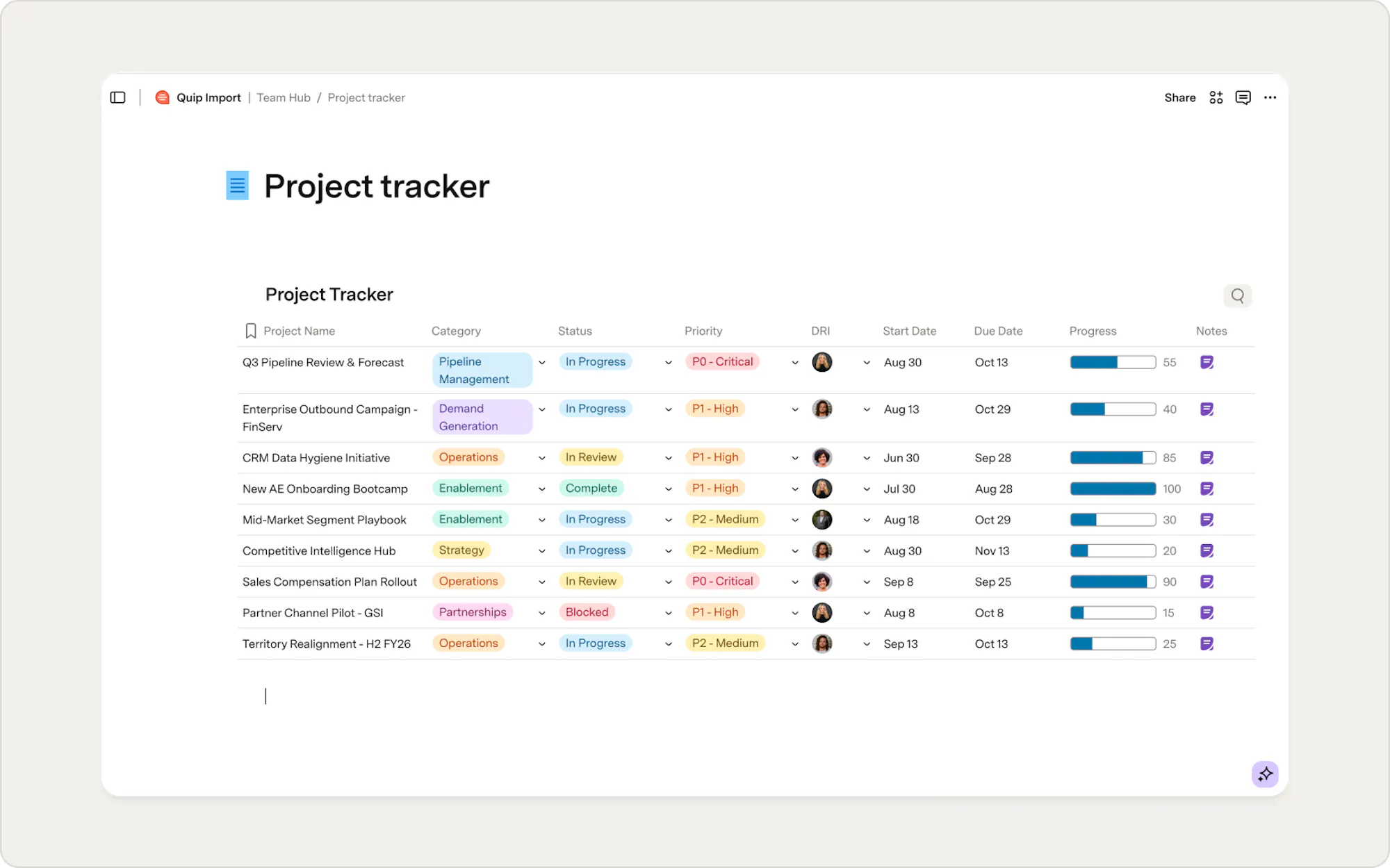
Most live apps (beyond Project Tracker)
Aside from Quip's Project Tracker, live apps like Calendar, Kanban, Polls, Jira, Progress Bars, and Salesforce embeds don't export the underlying data Superhuman Docs needs to recreate them. What you'll see in Superhuman Docs:- A clear callout appears where each live app was located.
- Your surrounding content stays fully intact.
- Use Packs like Google Calendars, Jira, Salesforce, or Slack.
- Create Boards, Calendars, or Timeline views from tables.
- Replace polls with simple voting tables or buttons.
Quip-specific integrations
Slack alerts, Jira mentions, Salesforce embeds, and other Quip-native integrations don’t transfer. These integrations run through Quip’s internal integration layer and are not in the export data. To bring these workflows to Superhuman Docs, you can:- Recreate them using Superhuman Docs Automations + Packs.
- Rebuild the logic directly in your doc using Superhuman Docs’ powerful formula language.
- Or use this as an opportunity to streamline how the workflow works.
Version history and personal notification settings
Version history, notification preferences, and other user-specific settings in Quip do not migrate. If you want to keep any earlier versions of your Quip doc, export them before you begin importing. In Superhuman Docs, you'll have new ways to manage this going forward. Superhuman Docs tracks changes, lets you review version history at the doc and page level, and gives each team member control over their own notifications. It's about starting fresh with tools that are designed for how your team works today.You’re not on your own
All of these items are expected and well-understood differences. After your import, Superhuman Docs adds an Import Fixes page to your doc that points you directly to any items that need attention and explains how to address them. You won't have to spend time hunting. They'll be clearly called out and easy to work through.Final checks before import
You're almost ready to start the import. A few considerations can help your import run smoothly and make your new Superhuman Docs easier to work with from the start.Think about performance
For the best experience, import each Quip folder into its own Superhuman Doc. If a folder contains more than 500 files, consider splitting it into smaller sets.Confirm your doc's time zone
Confirm your Superhuman Doc is set to the correct time zone. Superhuman Docs uses the doc’s time zone to interpret date and time values. If it doesn’t match what your team used in Quip, some dates or timestamps may look shifted after you import into Superhuman Docs. You can review or update the time zone from the doc settings menu in Superhuman Docs at any time before running the import.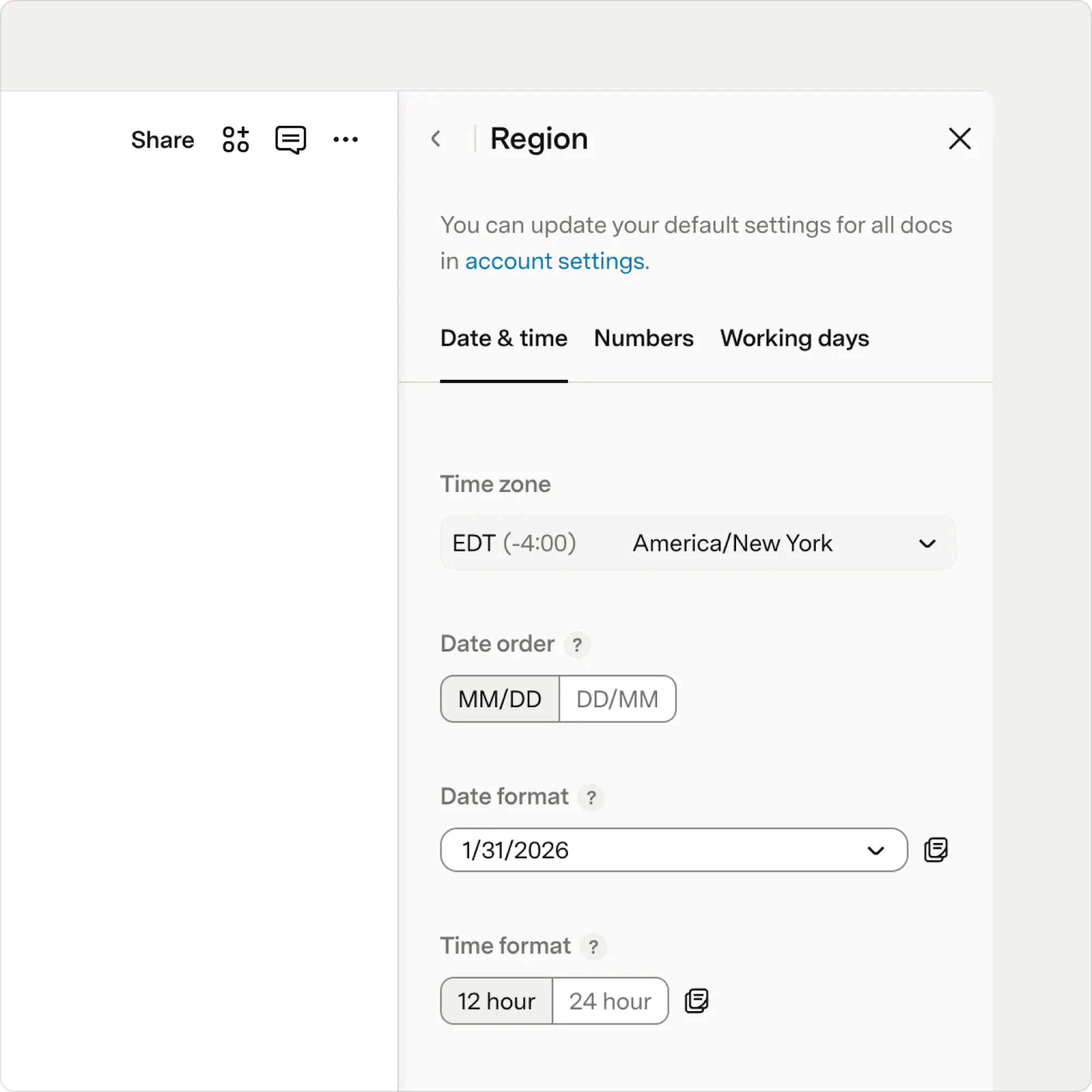
Set expectations for time
Import time depends on the amount of content you’re importing. Smaller imports may finish in a few minutes, while larger ones can take much longer. Once it starts, the import can run in the background.
Start with a pilot import
If this is your first time importing from Quip, start with a pilot import before bringing over your entire workspace. Select a single document or a small, representative folder, then run the import. It lets you see how your content maps to Superhuman Docs, review any follow-up items, and confirm that the structure looks as you expect.
Run the import
Alright, let’s do this. The steps below walk you through connecting Quip, selecting what to migrate, and kicking off the import in Superhuman Docs.1. Access the Quip importer
- Open your Superhuman Docs workspace and start a new doc.
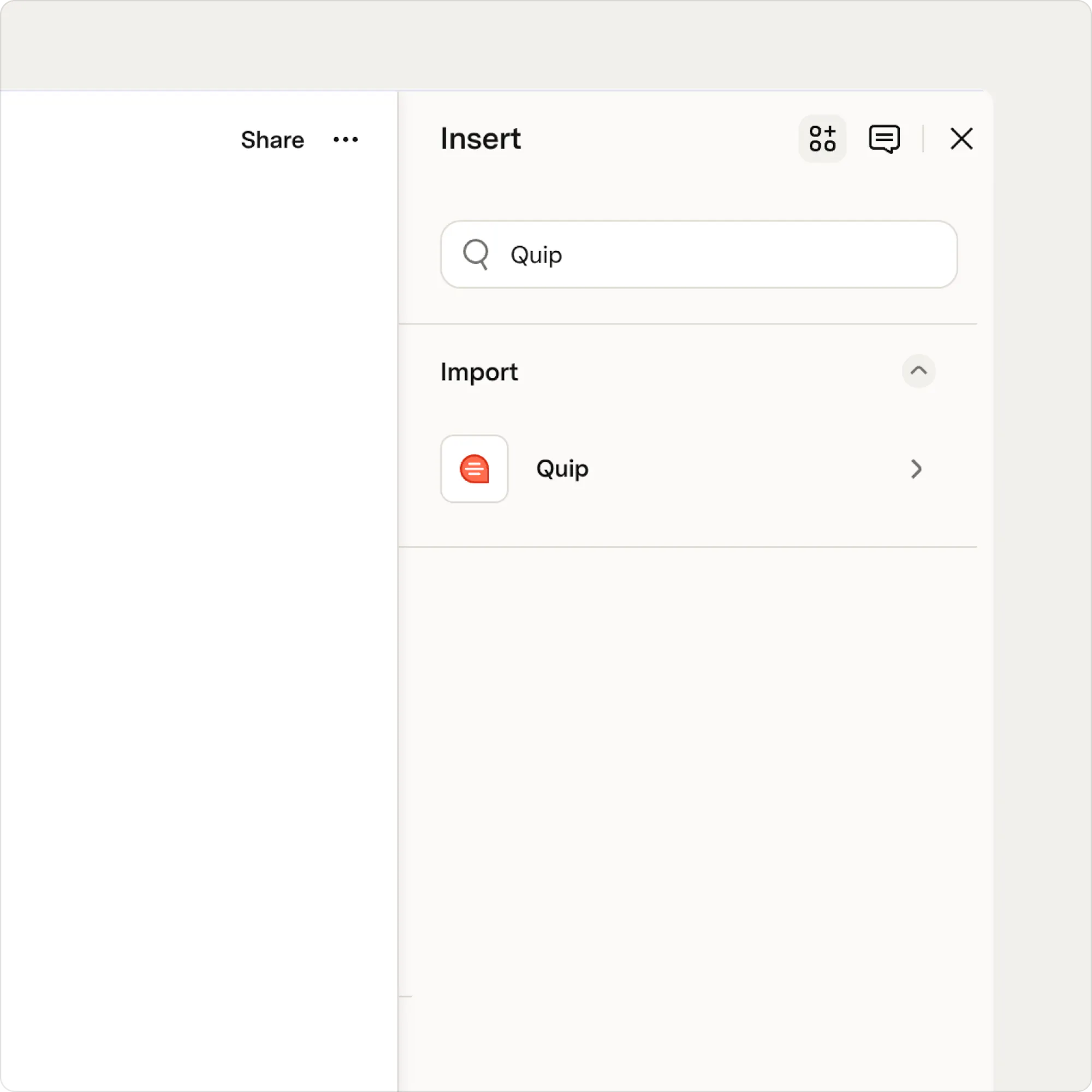
- Use the Insert tab on the upper right and search for “Quip.”
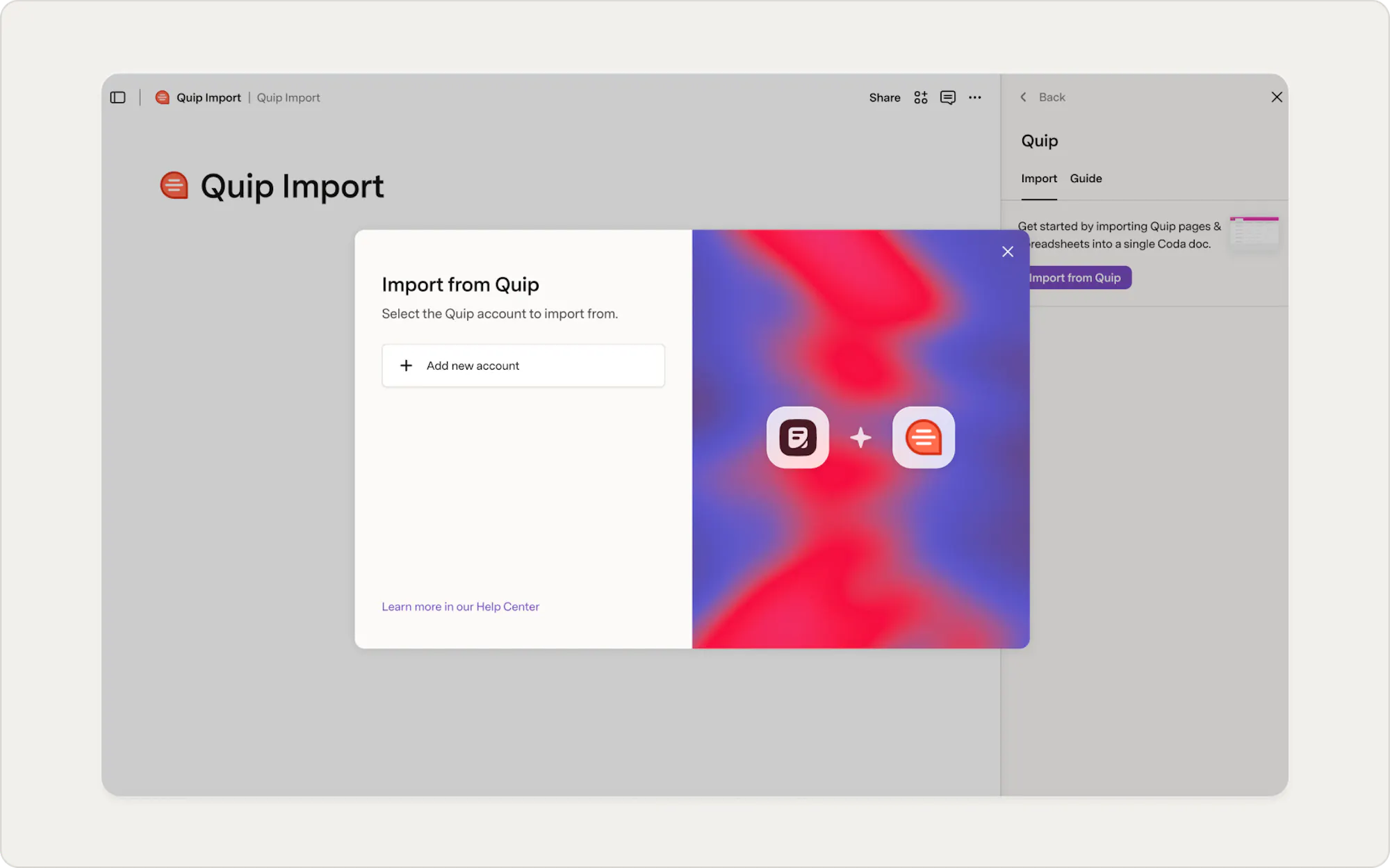
- Select “Quip” and choose Import from Quip.
2. Connect with Quip
- If you’ve connected Quip before, choose your existing account. Otherwise, select +Add New Account.
- Select the link to Get an access token from Quip, and you’ll be directed to Quip’s site.
- If prompted, sign in to your Quip account.
- On Quip’s site, select Get personal access token to generate your token.
- Copy the token that appears.
- Return to your Superhuman Doc and paste the token into the API token field.
- Select Continue to move forward with the import.
If you can't connect to Quip
If you see an error about Personal Access Tokens, it likely means this setting isn’t enabled in your Quip admin console. Contact your Quip admin to enable Personal Access Tokens before continuing. If you receive a message like “Your credentials to Quip have expired or are invalid,” try generating a new token. If the problem continues after tokens are enabled, contact Superhuman Docs support for additional help.
3. Choose your import method
You have two options for what to bring over from Quip. You can browse your folders to import an entire workspace or paste a direct link to import a specific document or folder. Pick the option that best fits how you organize your content. Both lead to the same import experience.4. Select content to import
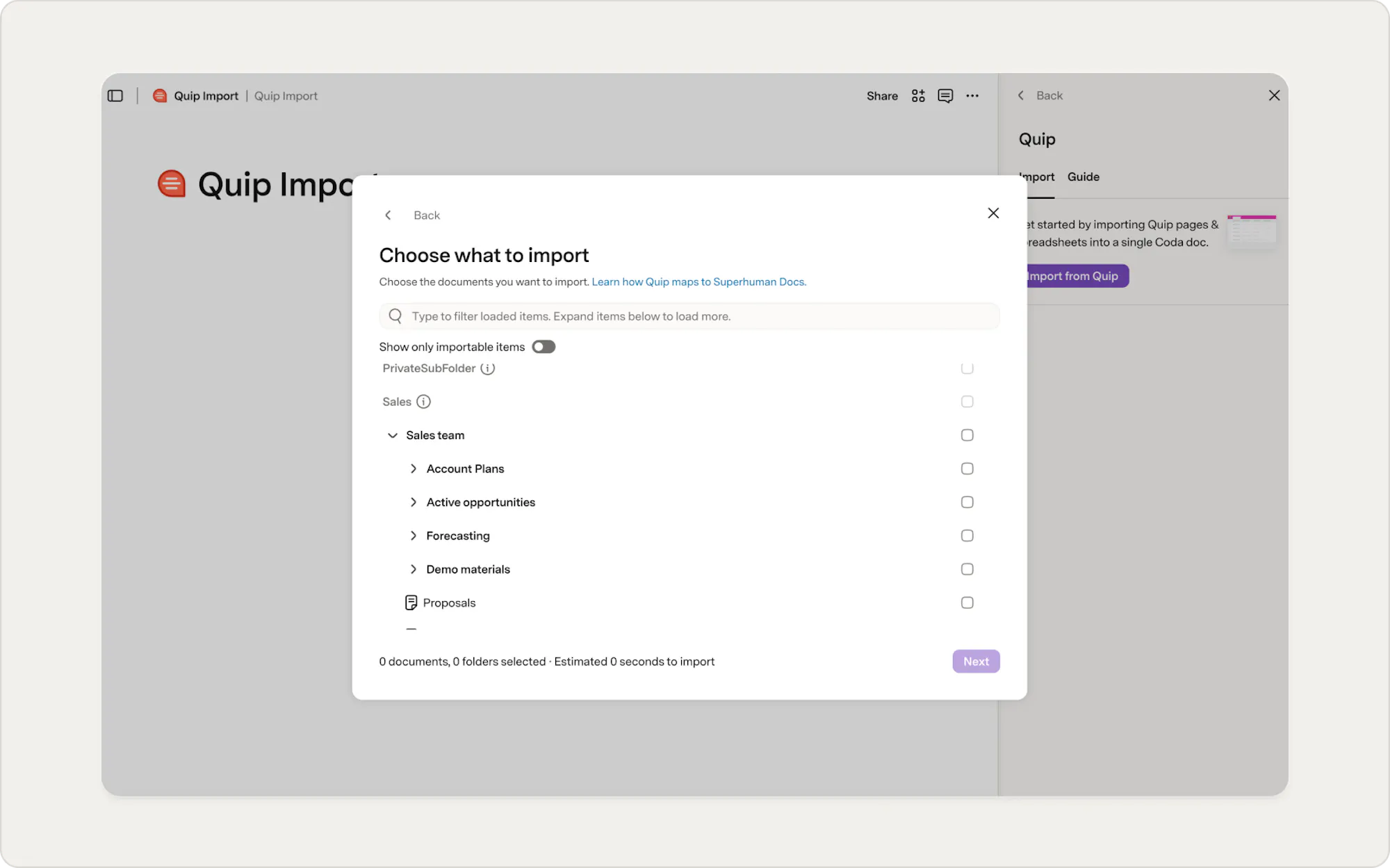
With your import method selected, you can now choose the content you’d like to bring into Superhuman Docs.- You’ll see a list of accessible Quip folders.
- Use the toggle at the top to Show only importable items.
- Then, select a folder you want to import.
- Everything inside that folder, documents, spreadsheets, and any nested folders, will be included in the import.
- Select Next to continue.
5. Review import summary
Next, you’ll see a summary of what will be brought into Superhuman Docs, including:- Documents
- Spreadsheets
- Folders
6. Monitor import progress
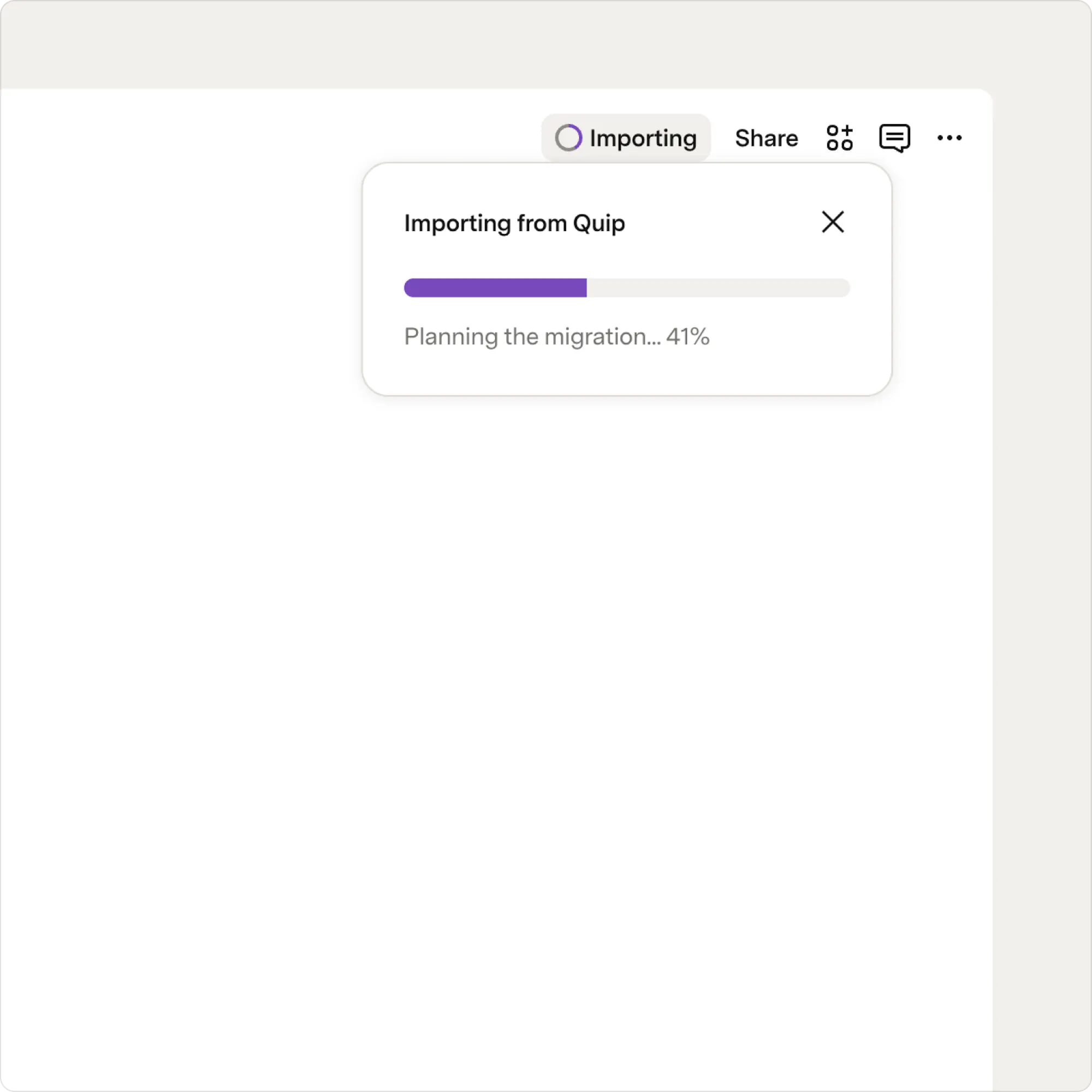
Superhuman Docs will process your import in the background. You’ll see a progress indicator that updates as each part of your content imports into the doc. You can keep working in other Superhuman Docs tabs during this time, and you’ll receive an email once your import is complete.
Why the import might pause or feel slow
The import might pause or feel slow, and it is completely normal. Superhuman Docs:
- Respects Quip API rate limits
- Automatically retries if needed
- Breaks large documents into smaller parts to keep things stable
7. Your import is complete
Once the import finishes, you’ll see a confirmation message letting you know everything has been imported into Superhuman Docs. From there, you can open the imported doc and start exploring. Imports don’t modify your Quip workspace. If you need to retry, you can delete the imported Superhuman Doc and run the import again without affecting your original content.Review your imported content
Now's a good time to get familiar with how everything looks in Superhuman Docs and review anything that may need attention. After your import finishes, you may see a Post-Import Tasks page that highlights items requiring follow-up, such as live apps, FILE columns, or content that couldn't be transferred one-to-one. If your organization or workspace has the appropriate feature enabled, you'll also see an Import Summary with a high-level overview of the import, including the number of documents and folders that were imported. If your import included sharing permissions, Superhuman Docs may also generate a Permission Report. The report summarizes how permissions from Quip were applied, highlights any access that changed during the import, and identifies users or items that may need your attention.
Quick validation checklist
- Skim the pages to make sure they match what you selected in Quip.
- Open a few tables and spot-check that the data looks right.
- Spot-check comments appear where you expect them.
- Glance at @mentions to confirm they link to the right people or placeholders.
- Visit the Import Fixes page to see any suggested next steps.
Import considerations and limitations
Most of these considerations will also appear on your Import Fixes page, so you’ll always know where to start.How grids and tables work in Superhuman Docs
Superhuman Docs doesn’t use traditional spreadsheets. Instead, it gives you two flexible building blocks, grids and tables, that together cover everything you may have done with spreadsheets in Quip and more. During import, Quip spreadsheets and tables are converted into Superhuman Docs as grids. Grids are a layout tool that preserves your data exactly as it appears in Quip, but they do not include the full functionality of Superhuman tables.
Grids
Grids are designed as a layout tool to quickly display structured data. They’re helpful when you want to view rows and columns without a full database. Grids do not include features like column-level formulas, relationships, automations, or advanced formulas, making them a lightweight and fast way to display imported data.

Tables
Tables are the more powerful counterpart to grids. They function as relational databases and unlock Superhuman Docs' advanced capabilities, including column-level formulas, linked relationships, multiple views (such as Board, Calendar, and Timeline), automations, and Connector integrations.
How to convert a grid to a table
- Hover over the grid.
- Select the Kebab menu (three dots).
- Choose Convert to table.
Project Tracker imports as a full table
Quip’s Project Tracker imports as a full table, requiring no conversion. Column structure and types are preserved, and the table is ready to use immediately. You can create views, add formulas, build automations, and connect your Packs as soon as the import is finished. FILE columns may require follow-up, since Quip does not export underlying file data. Any follow-up items related to Project Tracker appear on the Import Fixes page.Formulas may not translate one-to-one
Values will come through correctly, but the formula logic might not behave exactly as it did in Quip. That’s because:- Quip uses cell-based formulas.
- Superhuman Docs uses object- and column-based formulas.
Merged cells are not supported
Superhuman Docs does not support merged cells. If your Quip spreadsheet included merged cells, the data is preserved and displayed in the first unmerged cells. You can adjust the layout of these tables in Superhuman Docs to better reflect how the data should be organized.Date selectors become text
Date values are preserved during import, but Quip's interactive date selector controls are converted to plain text. If you want dates to be clickable again, change the column type in your table to a Date column.Images may need resizing
Images are imported, but any that you manually resized in Quip may appear at their original size in Superhuman Docs. You may need to resize these images to match your preferred layout.Large spreadsheets may require attention
Very large Quip spreadsheets may take longer to import and perform better when reorganized into multiple tables or filtered views in Superhuman Docs. You’ll likely see this with spreadsheets containing tens of thousands of rows.Comments and mentions
Comments are imported with their authors and timestamps. If Superhuman Docs can’t anchor a comment in the exact spot, it appears at the top of the page, so nothing is lost. When possible, we automatically map @mentions to Superhuman Docs users.Next steps
Once your content is in Superhuman Docs and you’ve reviewed the import, you can begin setting up the workflows that bring your doc to life. Here are a few simple next steps to help complete your migration to Superhuman Docs:Join a webinar (recommended)
You can see common workflows and ask questions as they come up. Webinars are a great way to learn what's possible in Superhuman Docs. View upcoming webinars.Create helpful views
Board, Calendar, Timeline, and Chart views make your data easier to understand and work with and can help your team navigate the doc more quickly. Learn more about creating helpful views.Reconnect integrations
If your team used tools like Slack, Jira, or Salesforce in Quip, you can rebuild those connections using Superhuman Docs Packs. Packs let you sync data, send updates, and automate parts of your workflow. Learn more about using Superhuman Docs Packs.Add automations
Superhuman Docs automations can handle reminders, notifications, and routine tasks. If your Quip content relied on triggers or recurring updates, this is the place to recreate or improve them. Learn more about how automations work and what they do.
Enterprise plans
Migrating a large or complex workspace? Our team can help plan and run a migration at scale. Reach out to your Superhuman Docs account team to get started.
Was this helpful?
YesNo