Skip to content
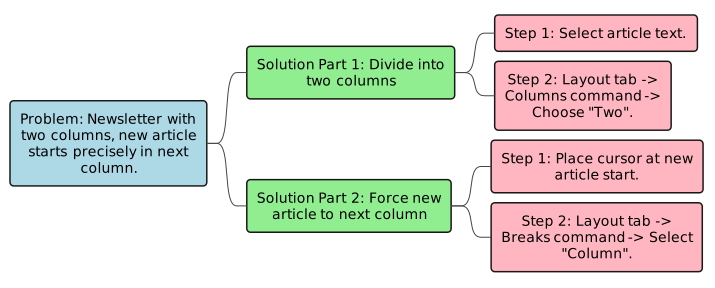
You are designing a school newsletter and want to divide your articles into two vertical sections on the page. Also, you want to ensure that a new article always starts precisely at the top of the second column, even if the previous article didn’t completely fill the first column. Describe the steps to achieve both of these layout requirements.To divide articles into two columns, first select the text for the articles. Then, go to the Layout tab, click on the Columns command in the Page Setup group, and choose “Two”. To force a new article to start at the top of the next column, place your cursor where the new article should begin, go back to the Layout tab, click on the Breaks command in the Page Setup group, and then select “Column” from the drop-down menu.
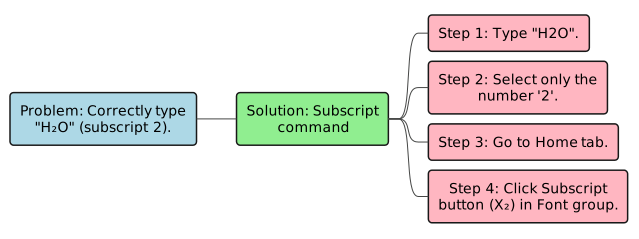
 For a science assignment, you need to type the chemical formula for water as “H₂O”. However, when you type “H2O”, the ‘2’ appears on the same line as ‘H’ and ‘O’. Which Word feature should you use to correctly position the ‘2’ and how?You should use the Subscript command. First, type “H2O”. Then, select only the number ‘2’. Go to the Home tab and click on the Subscript button (which looks like X₂) in the Font group. This will move the ‘2’ slightly below the baseline, correctly displaying “H₂O”.
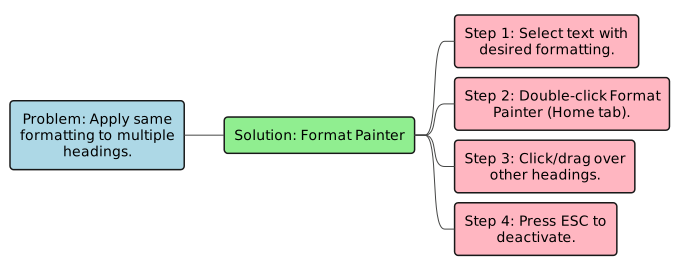
 You have just formatted a specific heading in your document with a unique font, size, and color. You want to apply this exact same formatting to ten other headings throughout your document without manually adjusting each one. How would you efficiently achieve this?You should use the Format Painter. First, select the heading that has the desired formatting. Then, double-click on the Format Painter icon in the Home tab. This will keep the brush active, allowing you to click or drag over each of the ten other headings to instantly apply the copied style. Once done, press the ESC key to deactivate the Format Painter.
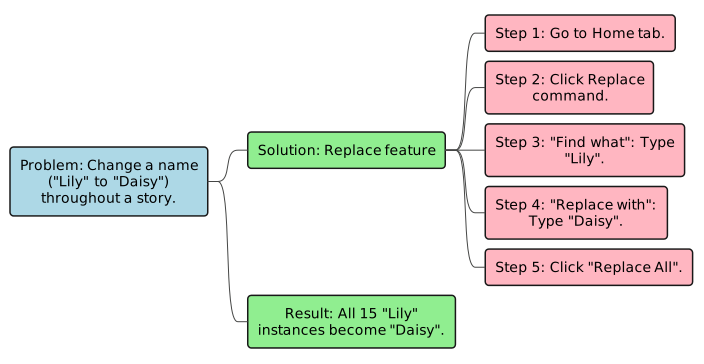
 You’ve written a long story about a character named “Lily” but halfway through, you decide to change her name to “Daisy” throughout the entire story. What Word feature would you use to efficiently make this change, and what would be the result if “Lily” appeared 15 times?You should use the Replace feature. You would go to the Home tab, click on the Replace command, and in the “Find what” box, type “Lily”. In the “Replace with” box, type “Daisy”. To change all occurrences, you would then click “Replace All”. If “Lily” appeared 15 times, there would be 15 instances of “Daisy” after the replacement.
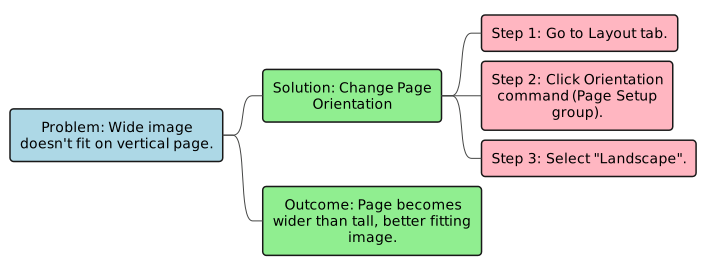
 You are creating a poster in Word that contains a large, wide image and some descriptive text. The default page layout prints vertically (taller than wide), but you need the page to be wider than it is tall so the image fits better. How can you adjust the page layout to achieve this?You should use the Page Orientation tool. Go to the Layout tab, then click on the Orientation command in the Page Setup group. From the drop-down menu, select “Landscape”. This will change the page’s orientation so it is wider than it is tall, providing more horizontal space for your image and text.
5th Grade - Demo
- Pages


Share
Explore
 Answer key
Prepared by: learnloophq@gmail.com
Last edited 181 days ago by Learn LoopHQ.
Chapter: 03. Advance Features Of Word 2016
Want to print your doc?
This is not the way.
This is not the way.

Try clicking the ··· in the right corner or using a keyboard shortcut (
CtrlP
) instead.