



11 min read
New owner, old doc
How to familiarize yourself with newly owned docs and resolve any broken automations and/or connections.

Some features mentioned are only available on Enterprise plans

What you'll get:
- How to understand doc schema
- Understanding sharing and usage
- How to reconnect automations/syncs
- Using Docs AI to understand the doc

What you'll use:
- Doc map
- Table options
- Doc stats and usage
- Automations
- Packs
- Docs AI
- Sharing settings
Doc map
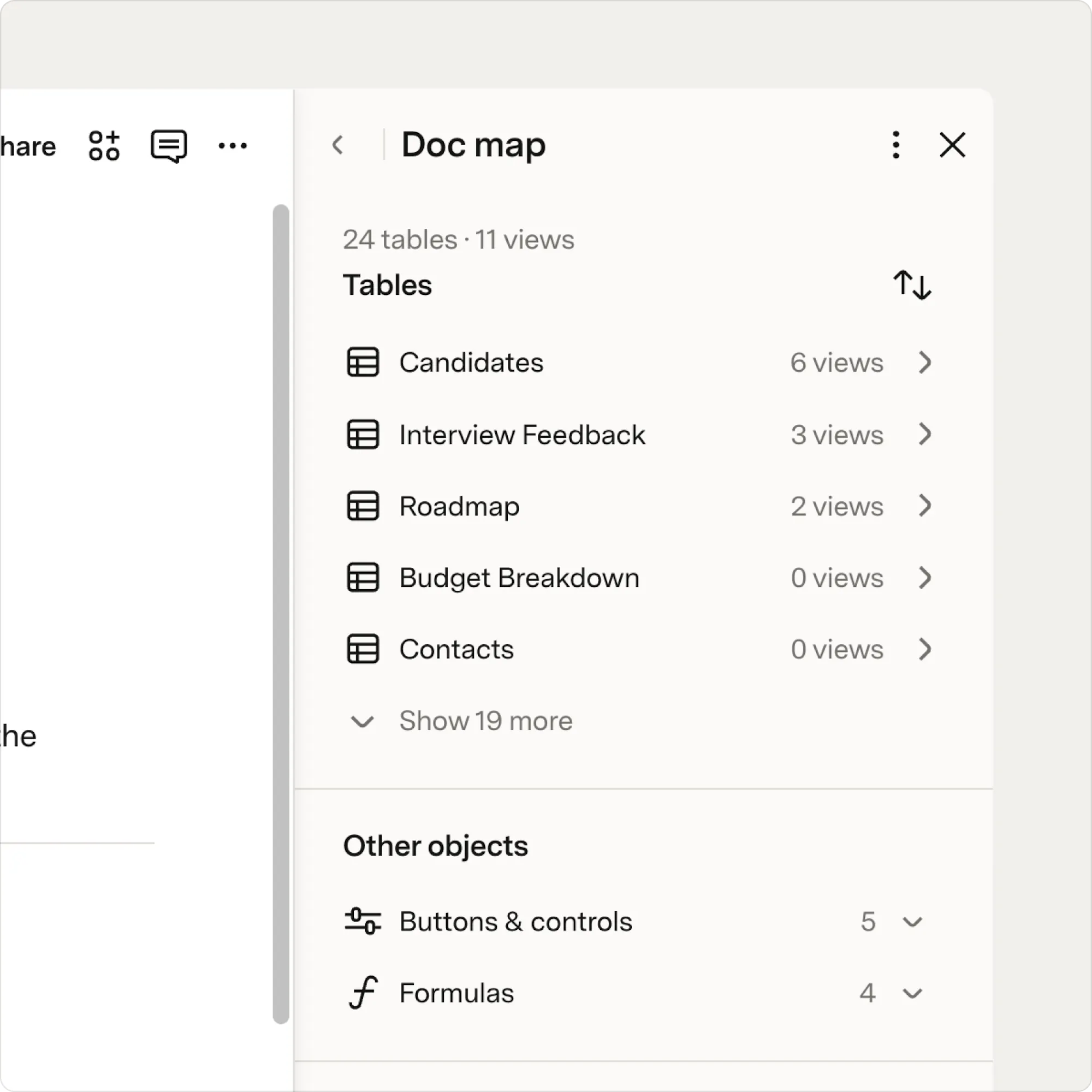
The Doc map is one of the quickest ways to understand a newly transferred doc. It provides a high-level view of all the tables, views, buttons, controls, AI blocks, and other objects in your doc, making it easier to understand how everything is connected. Use the Doc map to navigate directly to specific objects, identify the base tables that power the doc, and see how tables and views relate to one another before making changes. Learn more about how to navigate your doc via the doc map.
Review Recommendation
Tables:
Take note of table names and views. Clicking the title of a table will take you to its location within the doc.- Note which tables are base tables and which views are created from those tables. Base tables power the doc, removing a base table will, in turn, remove all views of that table in the doc.
- Review the underlying data of each table view. If there are any graphs, cards, or other special views, briefly turn them back into tables so you can understand the underlying data.
- On the table menu, click “columns” to reveal hidden columns. They often house buttons and other doc-critical functions.
Other Objects:
Take note of buttons, controls, and any AI blocks.- As you become more familiar with the doc’s schema it’s a good idea to name any unnamed objects.
- Check out other notable setups like filters, sorting, groups, etc.
Usage:
To understand how the doc is being used.- Click on the settings and the Statistics, then scroll down to “Usage” to understand what parts of the doc are using up credits or large amounts of data.
- Click “see more stats” for a comprehensive overview of the doc’s usage. (Enterprise only on unpublished docs). Learn more.
Automations
When you inherit a doc, it is important to ensure all automations are running as expected. To view automations, navigate to document settings, then automations. Check the trigger, conditions, and actions of each.Review Recommendation
Rules:
- Click on each rule and review triggers and actions. Do they match your understanding of the doc’s purpose and usage?
- If the previous owner had automations you can not edit, duplicate the automation to recreate them. Remember to delete or turn off the previous rule when finished.
Actions:
If possible, set your automations to “Take actions as Automation Bot.” This ensures that any actions taken by the automation, such as notifying users, come from the Superhuman Docs Automation Bot and not you. Test the automations by using the “Test rule” button. Click the “Activity tab” and review any errors. When finished, name your rules and turn them on.Packs
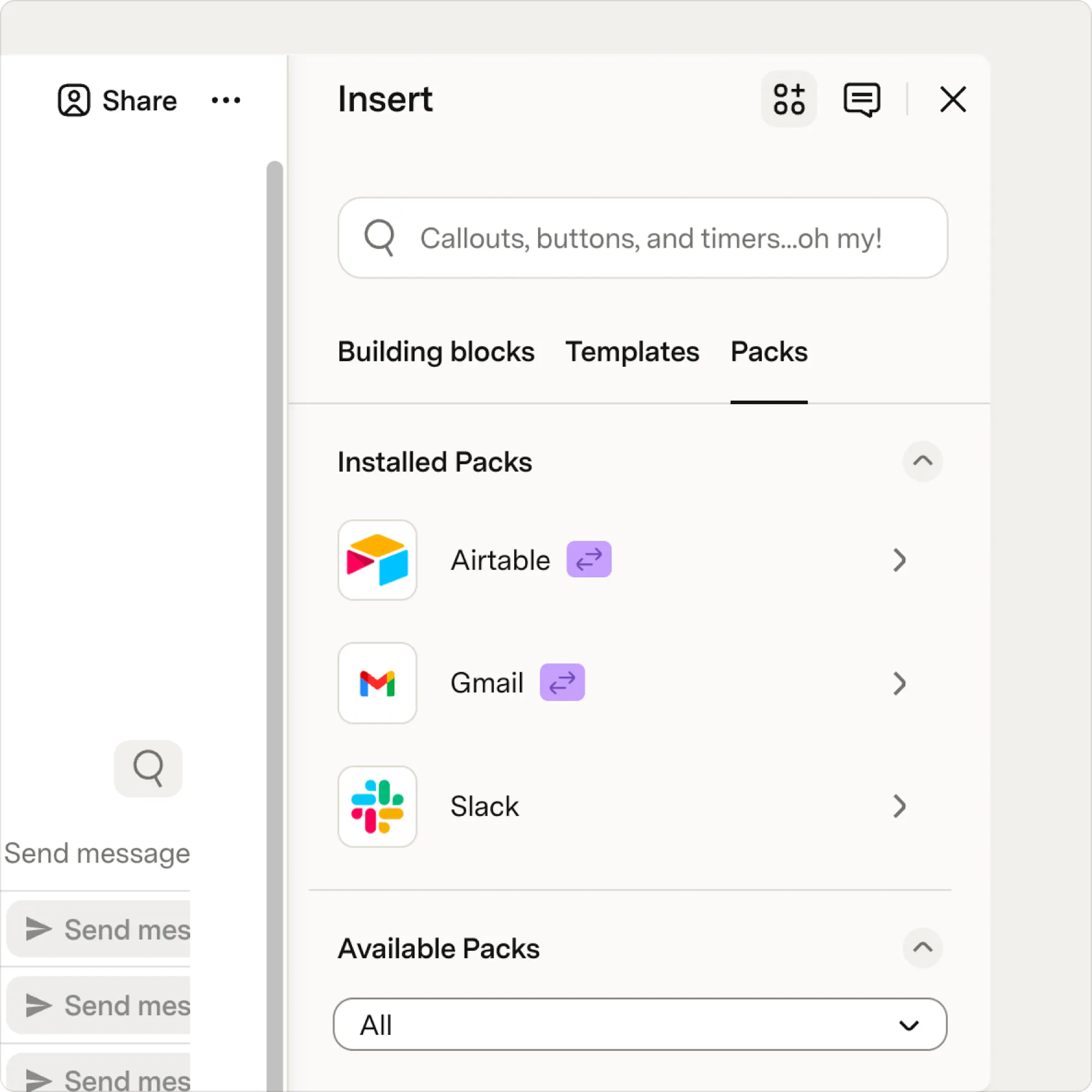
Review the Packs installed in the doc to understand which external tools it relies on and verify that data is syncing correctly. Pack connections are tied to the previous owner's credentials, so you'll likely need to reconnect the affected Packs using your own account or a shared account. Taking a few minutes to verify these connections helps ensure that syncs, buttons, automations, and other Pack-powered workflows continue to function as expected.
Review Recommendation
Packs:
Navigate to the “Insert” panel in your doc, and then click Packs to see what Packs are installed.- Click on each Pack and then “Settings” to select or add your account.
- Some Packs need an account to sync data from the app or service you’re integrating to Superhuman Docs — A connector account. Since the previous owner’s account is no longer available you will have to enter a new one.
Cross-doc:
- Cross-doc creates a connection between two docs so table data can be transferred between both.
- If your doc contains Cross-doc you’ll have to set up your own cross-doc account for any buttons or automations that use cross-doc and/or cross-doc actions.
Sharing
Check doc sharing settings to verify who has access to the doc. This is also a good time to consider where in your workspace this doc should live. For example, should it live in a specific team folder?Review Recommendation
Sharing and access:
Review individual access, permissions, workspace access, and publishing.Locking:
Locking gives you granular control over how users interact with pages and page content.- Adjust settings to match the purpose and expected usage of this doc.
- Verify doc admin settings. Your new doc might have doc-specific admins. Verify that the intended users have the doc admin permissions needed.
Superhuman Docs AI
Docs AI is Superhuman Docs' built-in AI assistant. Unlike AI tools that live in a separate chat window, Docs AI works directly inside your doc. It understands the context of your pages, tables, and data, so it can give you answers that are specific to what's actually in the doc, not just general information.Review Recommendation
For a newly transferred doc, use Docs AI. It is one of the fastest ways to get oriented. Try some of these prompts to get started:- "What is this doc used for?"
- "Summarize this doc."
- "What are the most important tables in this doc?"
- "What automations exist in this doc and what do they do?"
- "Who are the key people mentioned in this doc?"
- "What does this table track?"
- "Are there any pages I should review before making changes?"
Now what?
Getting familiar with a transferred doc is the first step. Here are a few good next steps to help you get up and running:- What is Superhuman Docs? — a walkthrough of the core building blocks if you're new to the platform
- Getting started with Docs AI — learn how Docs AI can help you understand, summarize, and build on the doc you've inherited
- 11 prompts to try in Docs AI — ready-to-use prompts to get more out of the doc right away
Was this helpful?
YesNo