



15 min read
Building for viewers
Eliminate confusion and lack of clarity in your doc to allow your team to get work done.

What you’ll learn…
- How to build for viewers
- Creating quality experience for your team

What you’ll use…
- Buttons
- Page options
- Filter bar
- Callouts
1. Empathize with your audience
The first step to any good doc build is to put yourself in your doc collaborator’s shoes. Design for them, not for yourself. Start out by thinking about how you want your collaborators to use your doc. Here are some questions to get the juices flowing:- What elements do you appreciate when you’re a collaborator instead of a maker? What do you not like?
- Why are your collaborators coming to the doc? Is it to update statuses? Add a request for a new project? If you can’t clearly articulate this, how will they know what to do?
- When they get there, what will they see? Is it welcoming? Instructive?
- Is it obvious to them what they should do first? What about step number 2?

Docs tip
See below on how to use callouts to make instructions stand out.
2. Keep your team's experience consistent
As you build out your frontend pages (those that your collaborators will interact with), make sure you keep them consistent.- If you use buttons to add rows to tables, make that consistent for every table.
- Turned on subpages in your page options menu? Do it on every page.
- Serif font on one page, serif font on all pages.
- Like filter bars for filtering? Use them on all your tables (that need a filter).
- Use your headers appropriately. H1, H2, then H3. It will also make your doc more accessible to people who use alternative navigation.
3. Clarity keeps your doc clean
Now that you have your doc built, make sure you set it up for scale by keeping it fresh.Keep your doc free from digital clutter
Set up automations to archive completed or outdated tasks. Schedule reminders for yourself to review your doc for stale data or pages. Because you built the doc, it’s easy to look past the digital clutter—your team will thank you for keeping it clean!Doc tip
You can turn on last edited and authors for pages to see usage and assign ownership. You can also see row activity by expanding the row.
Make it clear what your doc is for
Be clear about instructions, in context, and accessibility. Put instructions at the top of the doc. Put it at the top of each "frontend" page. Put them in a callout so they're eye-catching. Put instructions in your instructions. Basically, give it away Oprah style ("You get instructions! And you get instructions! Everybody gets instructions!").- [WIP] - Page title: When a page is titled like this, it is not yet ready for collaboration. Please do not edit.
- Don’t delete tables: If you think a table needs to be removed, please reach out [insert your @ reference here].
- Use the filter bar only to filter a table.
Doc tip
By providing these best practices, you keep your collaborators informed and your doc functioning.
Make your way-finding clear
We talked earlier about creating a journey map for your collaborators. But a map is only as good as its waypoints. When your team jumps into your doc, it should be clear where to go and how to get there. Use Superhuman Docs @ references when you need a link to pages, tables, and rows. You can also use clearly labeled buttons to link to pages or sections of docs.Keep instructions on buttons super clear. A collaborator should be able to read a button and know exactly what it's doing. Think "Add discussion topic" instead of "Add row" for a Dory, or "Send project reminder" over "Send message." Also, make sure your buttons' colors match their uses. We all love a pink button, but red means delete — everywhere. One common challenge collaborators face is knowing whether something in a doc is official or up to date. Teams solve this in different ways, including:
- Creating a sign-off column.
- Updating the "instructions" at the top of a doc to describe it as "living."
- Changing the title of a table to reflect "archive."
- Titling a section "this is a scratch space."
- Keeping docs limited to a small group until "approved."
- Labeling pages with "draft" or "WIP" before the title.
- Looking to other tools like Google or Slack for a "stamp of approval."
- Using a reaction, like a checkmark emoji, to show approval once the right people have seen it.
- Adding a button that stamps a timestamp into the table when something is finalized.
Make a scratch page
Do you have collaborators who might need a notes section? A sandbox to play in? Give them a dedicated place with clear instructions on how to get there. To create one, add a new page from the page list on the left, name it something obvious like "Notes" or "Sandbox," and drop a quick instructional sentence at the top so people know what it's for and what it isn't. If you only want certain people poking around in there, you can also lock the rest of the doc and leave this page open, so it's clear where they're free to experiment.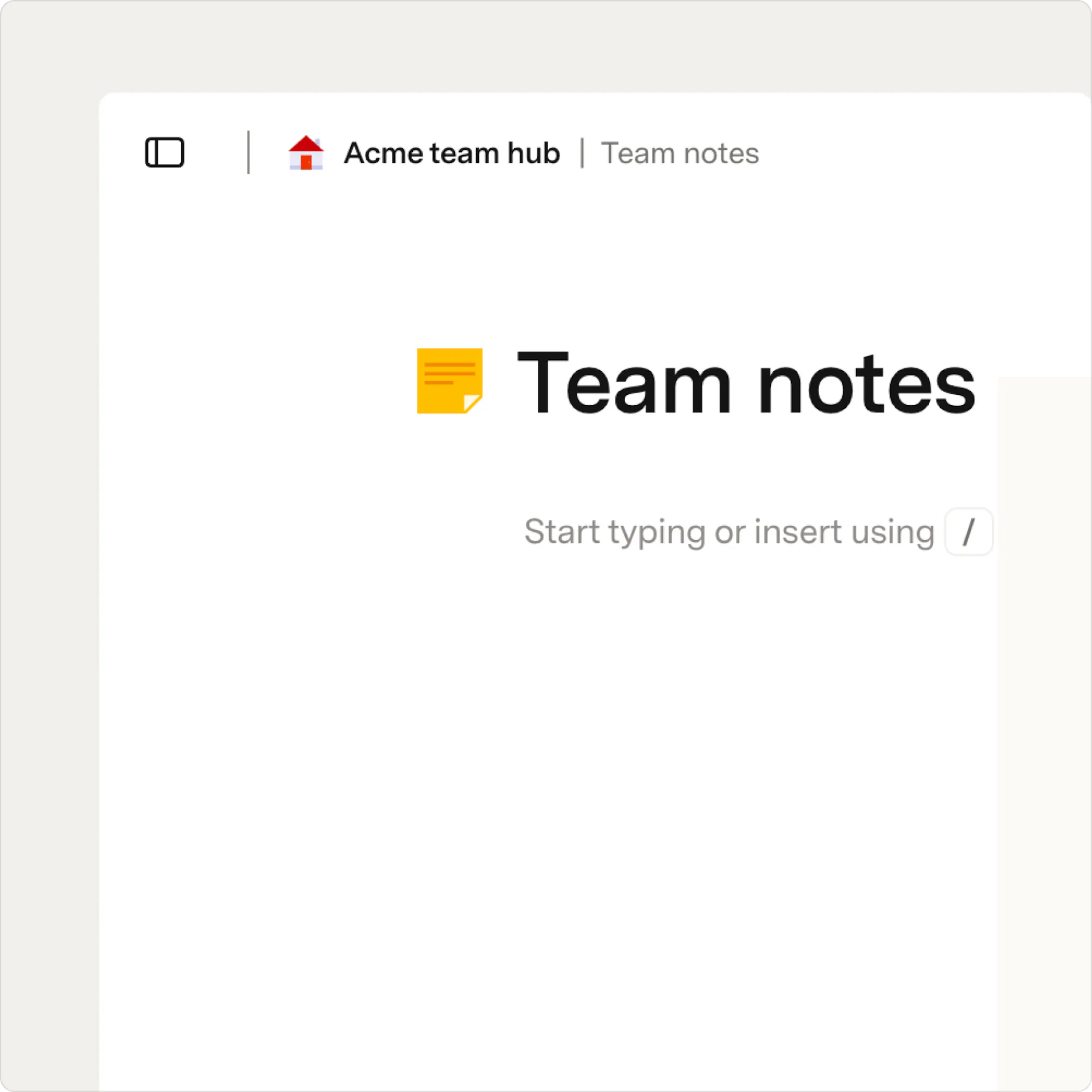
Lock your doc down
Some folks only need to update table values or to upvote agenda items. In these cases, use locking to your advantage. The goal here is not to lock folks out of your doc, but to provide them with the structure to work freely without feeling like they will mess something up.4. Test your doc to unearth any issues
The ultimate exercise in empathy is to test your doc with the humans who will be using it. Before you push it out to the whole team, have a few folks test it. For best results, have people test it who did not help build it. You want folks with fresh, unbiased eyes. In a similar vein, include a Dory somewhere in your doc (with specific instructions on how to use it) to elicit feedback from collaborators later down the line.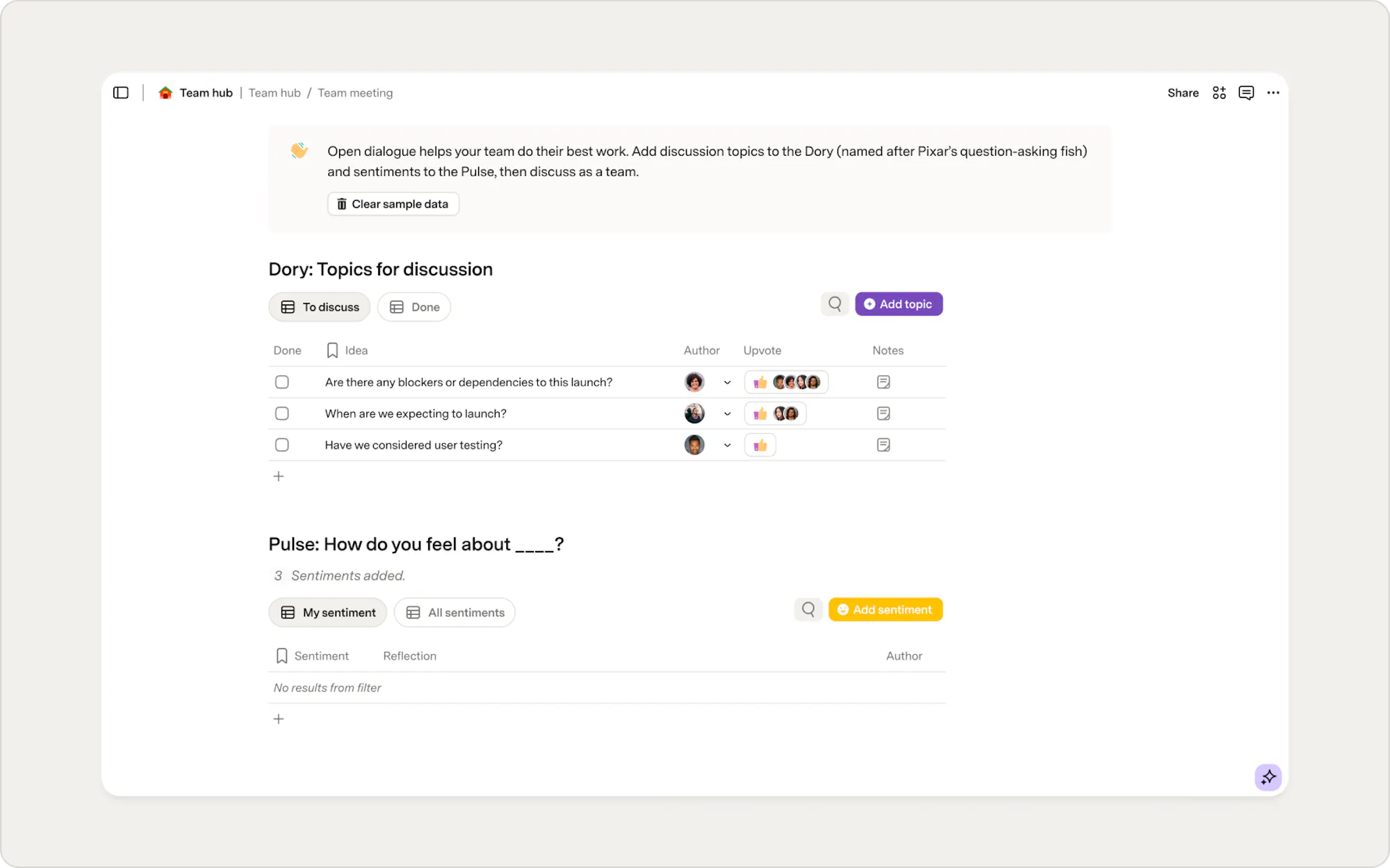
Now what?
You made it! And your doc is ready for collaborators. So what next?- Check out our how to pitch Superhuman Docs to your team guide to get everyone pumped about using your new doc.
- You got one doc down, what about connecting multiple docs (or teams). Check out syncing data in and out of Superhuman Docs.
Was this helpful?
YesNo