


15 min read
Notification tips and tricks
Transform notifications from noisy alerts into a powerful signal system that better supports collaboration and more efficient workflows.

What's covered
- Notification Settings
- Notification Packs
- Buttons
- Automation

What you'll use
- Account Settings
- Tables
- Automation
- Packs
What are notifications?
In Superhuman Docs, notifications are alerts that keep you up to date on what’s happening in your docs, without requiring you to constantly check them. They’re triggered by activity that matters to you, like someone assigning you a task, mentioning you in a comment, updating a row you’re watching, running an automation that you’re linked to, and more. Depending on your preferences, these updates can appear in Superhuman Docs' notification center, be sent via email, or be connected to tools like Slack. Together, they act as a personalized signal system that surfaces only the changes and actions you care about, so you can respond quickly and stay aligned with your team.
Notification tips and tricks
You’re no stranger to notifications - not in today’s digital workspace. That said, Superhuman Docs has notification features and settings that can transform noisy alerts into more meaningful touch points.Edit your notification preferences
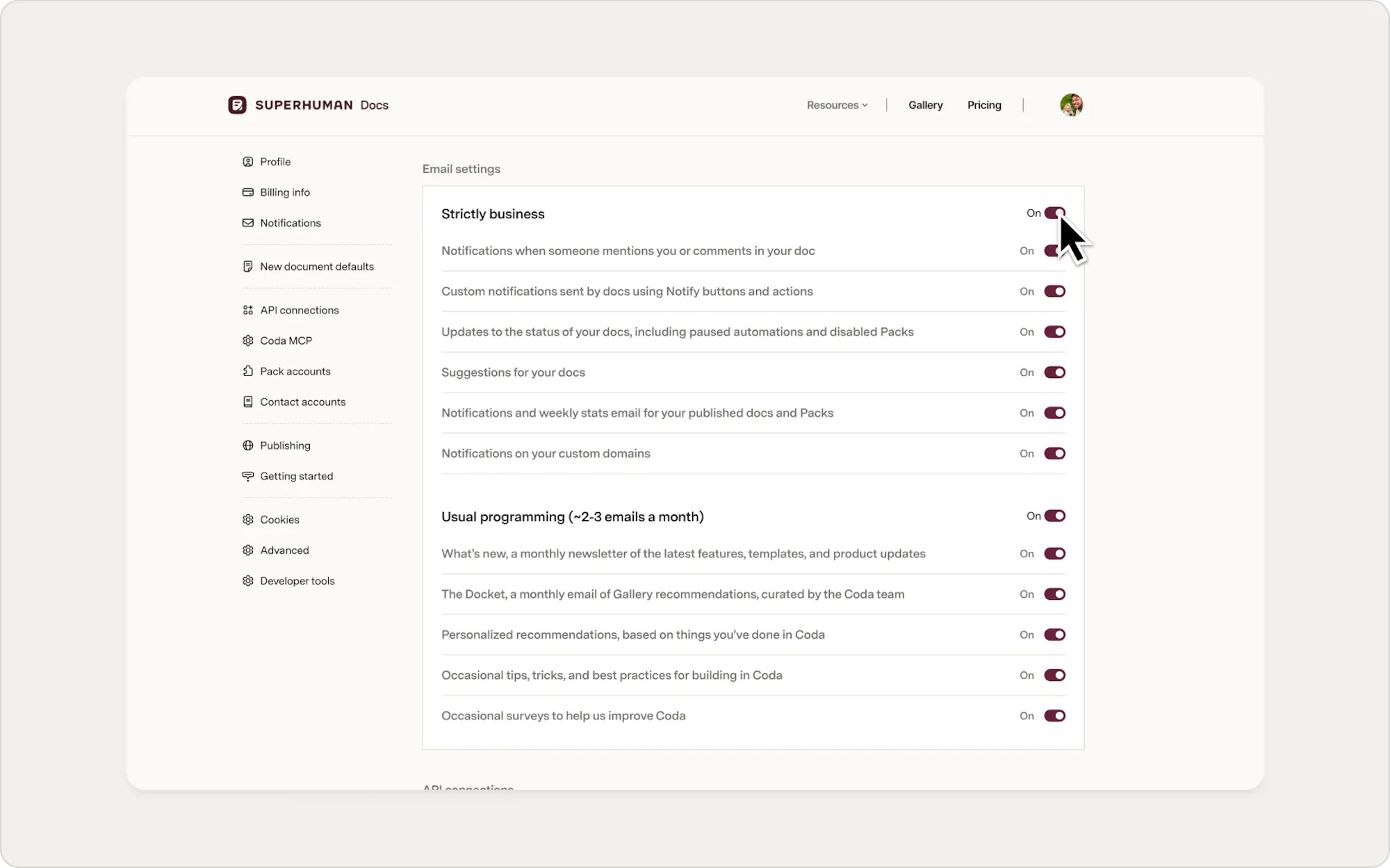
Your notification settings in Superhuman Docs are the foundation for ensuring your alerts reach you. If notifications are turned off in your account settings, updates will only appear in the in-app bell icon and won’t be sent to your email. By confirming your email preferences, you ensure that important comments, mentions, and automation updates are delivered directly to your inbox, so you don’t miss critical activity in your docs. To ensure notification settings allow notifications outside Superhuman Docs' platform, take the following actions:- In Superhuman Docs, select your user profile in the lower-right corner of your browser.
- Choose Account Settings.
- Scroll down to Email Settings.
- Confirm ‘Strictly Business’ settings are enabled.
Use notification connections
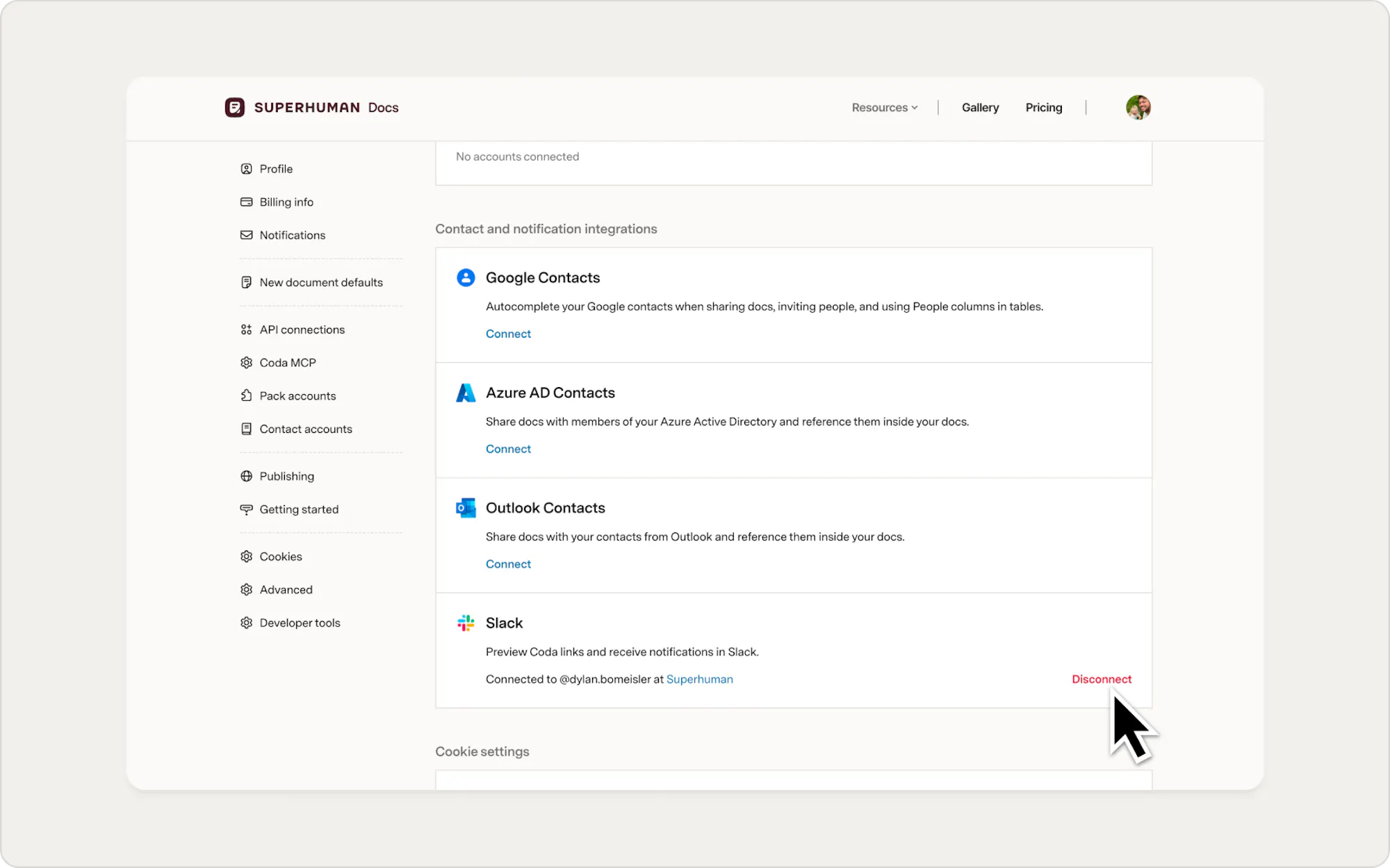
Superhuman Docs can further streamline your notification workflows by connecting your docs to the tools where your team already lives, like Slack. Instead of manually copying updates or relying solely on in-app alerts, you can use this connection to automatically send tailored messages, summaries, or alerts to the right channels at the right time, delivering notifications in the most natural place for your teammates. To enable these connections, take the following actions:- In Superhuman Docs, select your user profile in the lower-right corner of your browser.
- Choose Account Settings.
- Scroll down to Contact and notification integrations.
- Select Connect next to your desired connection, like Slack.
- Follow the on screen prompts to log-in and connect your new notification delivery method.
Automate notifications
Automated notification workflows in Superhuman Docs ensure the right people are informed at exactly the right moments, without anyone needing to manually send updates or chase status. By tying notifications to specific triggers, like a status change, due date, or button click, teams can reliably surface important changes while reducing busywork and human error. It not only keeps projects moving forward with fewer delays but also creates a clear, repeatable communication pattern that scales with your docs and collaborators.When possible, opt to create automated buttons
Setting up automations can be simple: Superhuman Docs prompts you to establish a when, an if, and a then. These parameters establish the guardrails for automations to run within. A common example might be notifying a specific user daily whenever changes occur to a table or project tracker.All this automation can be set in your document settings. However, creating a button in your canvas or table, giving it a clear action, and automating it can be the simplest and most future-proof approach to creating automations.
- Buttons exist in your document and aren’t hidden in document settings, and can be edited by others with editing permissions in the event of your absence.
- Buttons handle actions (if/then) with less complexity and can be automated separately, making them ideal for building, testing, and refining.
- Buttons can be more approachable for collaborators of all experience levels.
View notifications by doc
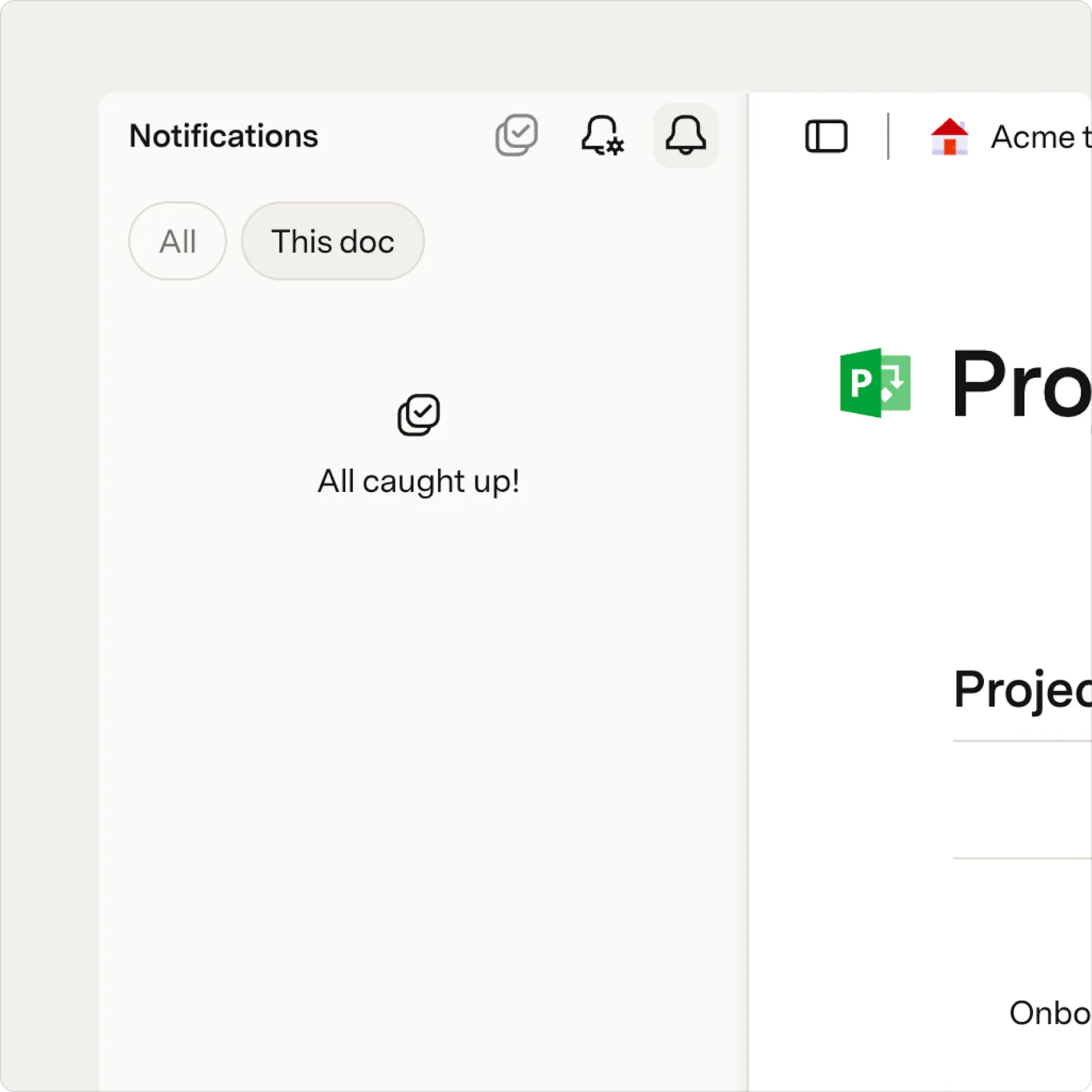
Reviewing notifications by document gives people a focused view of what’s changed in a single workspace, without extra noise from other docs. It makes it easier to track edits, comments, and decisions in context, especially for high-traffic docs where teams rely on a single source of truth. Learn how to do this with our brief video tutorial, linked below, or with our written steps in the next sub-section. To filter down on document-specific notifications, take the following actions:
- Select the notification bell icon in the top left corner of your screen.
- Underneath the Notifications header, select This doc.
Was this helpful?
YesNo