Skip to content
What is a LUA Script?
A set of written instructions written in the LUA programming language Why are we using one in this lab.
We are using it to adjust parameters on the TX module via the DATX (Transmitter) The 3 Differences:
a. Name was changed from: DAB010 to PUB01
b. Val changed from 10 to 1
c. View changed from 1 to 2
Connect the flight controller to Ground Control and navigate to the Parameters tab.Download the parameters (this is always required to download the current parameters).Export the parameters as a file named parameters_PUB## where ## corresponds with your two digit group number.Add the parameter file to the table above.Import and upload the parameters file attached: From the Engineering windows, reboot the autopilot.Export the parameters again as a file named parameters_PUB## Add the parameter file to the table above.
Connect the following sensors to the flight controller: GPS, airspeed sensor, telemetry, and DATX.Verify that all systems are in the green and that the aircraft gets GPS signal. This is shown in the Platform Health Status window and the RC connection status in the top ribbon.This may require setting the system near a window with a clear view of the sky.
What is the current FCU version? This information is available in the status text window of Ground Control.
Include a screenshot of your Platform Health Status.

 Motors and controls
Overview
This lab focused on pairing the DATX transmitter with the BlueCube flight controller, uploading firmware and parameters, and verifying sensor connectivity to ensure reliable aircraft operation.
Resources


There are no rows in this table
DATX
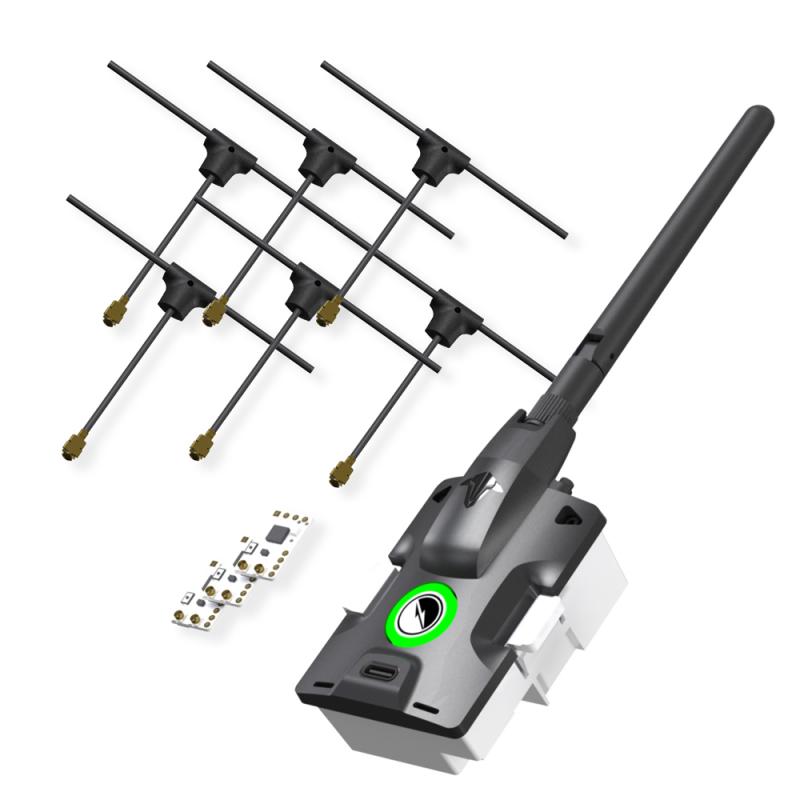
Connecting to any aircraft require two things. A transmitter and receiver. On our aircraft we are using the controller as a User Interface for a third party transmitter rather than using the built in transmitter. The TBS Tracer Micro Starter set is what we are using.
Items in Tracer Micro Starter Set
Name
Purpose
Picture
Antenna
transmit and receive signals

Reciever
receive signals from GCS or transmitter to allow for control of the aircraft, viewing of telemetry info, ect.

Servo Pins
Providing physical connection which allows for signal transfer from receiver to servo.

There are no rows in this table
Then we soldered the servo pins to the receiver. This is a picture of the compete receiver:


Pairing TX and RX
Then we used to upload model00 and model01 and compared the differences. There were 3 differences. We also changed “view: 1” to “view: 2” on models 01-06. This is the default view you see when piloting the aircraft and view 2 gives us more data.
Then we plugged in out RX into the BlueCube. Then we Powered on your DATX and navigated to the LUA script and went through the binding process.
FCU and Parameters
In , we flashed the BlueCube with FCU Version 1.31. The FCU version and the parameters file we will be using do not align, so uploading causes an error.
Upload Firmware and Parameters
To upload the firmware and parameters we used the following steps
Broken link
111025Dab10Parm - Modified.json
Broken link
Test System Connectivity
With the new parameters uploaded, it’s important to test that all systems are green. These are the steps we used to do that
Questions
Servos, ESC and Motors
Using the DAB010 model as a working guide, develop a wiring table and notes for all connections including, telemetry, sensors, flight controls, and motors. This should mirror DAB010 and be 100% complete and comprehensive. This is the only day that the sample platform will be available. All remaining work will be completed from your wiring notes.
Wire Diagram Rough Draft:

Want to print your doc?
This is not the way.
This is not the way.
Try clicking the ··· in the right corner or using a keyboard shortcut (
CtrlP
) instead.