Skip to content
Create Dropbox Folder with “Source Material” SubfolderAdd Folder to TableAdd Notes (Script) for Video recordingAdd Release Date
The Thumbnail needs to be added to the related Dropbox folderThen check the Checkbox “Thumbnail Ready”This will unlock “For Approval” button. Only the Accountable person mentioned above is allowed to hit this button!The final step of the editing is to provide the v1 or vx.x of the edit in the Dropbox Folder.Once the edit is in the DB folder, the accountable person presses “For Approval” button.If edit is fine, it wont get back to editing.
If something is missing, it will come back to Video Editing with one or more comments in the “Change Comments” field to resolve. Then repeat from step 4. onwards. You will see a 🔴 as indicator that edits are needed  Then open the taskThen find comments in the text box:
Add three lines (max) as descriptionAdd Chapters if possible
CHATSTOOL REVIEWSTECH REVIEWSSPECIALSNEWS


Share
Explore
 Video Production SOP
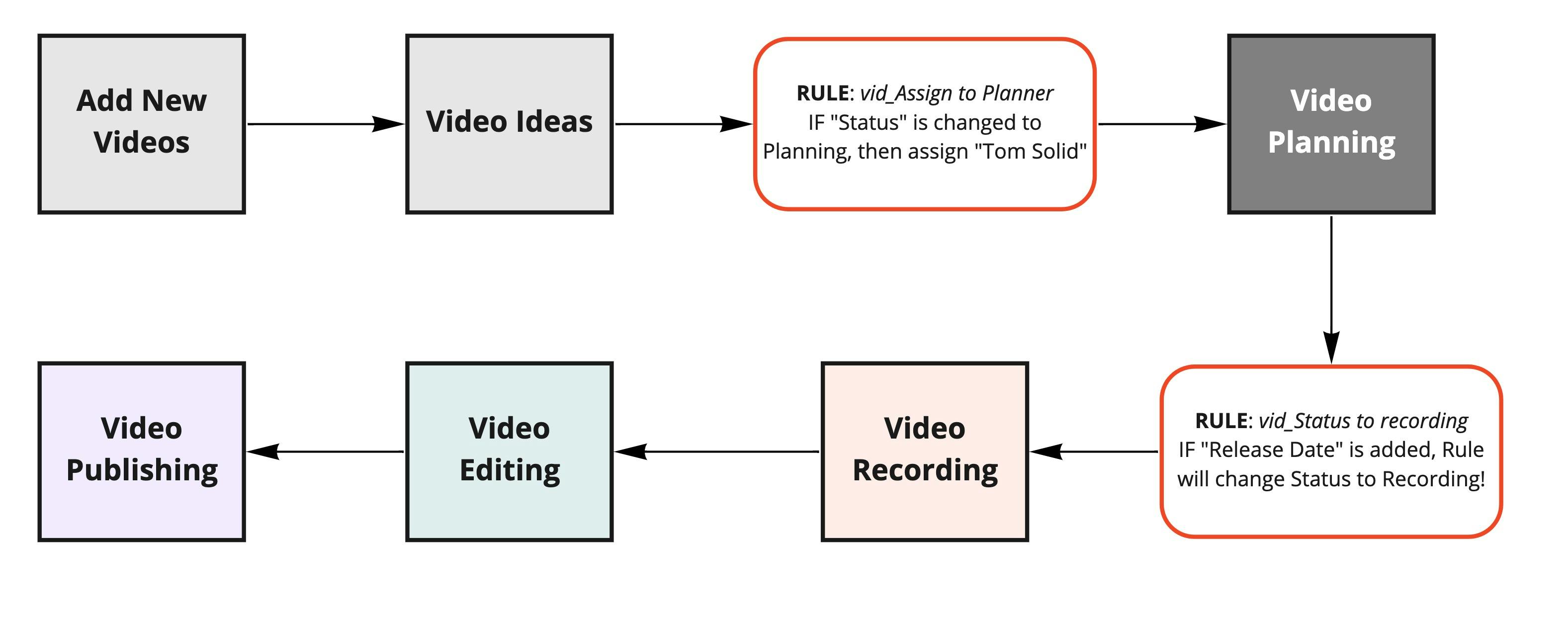
Processflow
Accountable for this step: NAME
Video Planning includes the following steps:
The formatting must be date of creation in front yyyyMMdd_videotopic


Loading video: 2021-03-06_13-55-33.mp4...
IMPORTANT:
As soon a Release Date is added, the automation rule “vid_Status to Recording” will be triggered moving the video from Planning to Recording.
Accountable for this step: NAME
Any recordings via Screenflow need to be rendered in mp4 and added to the related DB folder BEFORE setting the task status to “Editing”.
OBS recordings need to be remuxed and then rendered as well.
Accountable for this step (Standard Videos):
Responsible for video edits: NAME
Responsible for Thumbnails: NAME
Accountable for this step (CHAT Videos): NAME
Responsible for video edits: NAME‘s Agency
Responsible for Thumbnails: NAME
Once the video is recorded and sent to the section, the responsible team members will find everything to complete editing.
All files will and MUST be located in the dropbox folder provided in the refering column.
Video Rejected


4. When changes applied, then tick VID Checkbox and send for approval again.
See Scheduling Column for videos assigned to complete.
Go to Project Folder to access the Dropbox screen showing folders: Project Files and Source Files. The final video is in the Project Folder. Download items.
Youtube
Add Thumbnail
For Thumbnail file: see "Thumbnail URL"
• Upload onto YouTube
• End Screen > choose "use previous End Screen" position correctly.
• Check the link of website icon is positioned correctly.
• Add title based on video name.
• Add first 3 lines to YT blurb.
• Add Timestamps of key points in video.
• Mark as “unlisted”
Add Cards
With Cards we point people to relevant information mentioned in the video.
Either to our website or other videos of our YT channel.

Add Endscreen
Loading video: 2021-03-11_14-20-33.mp4...
Add Description
Add to Playlist
Look for High Level Playlists such as

If possible and if it is a NEWS video, look or create a playlist for the app mentioned in the video
CoSchedule
Highlight URL, take to CoSchedule, to create Campaign. ( @Tom Solid to give me access to CoSchedule)
Go to Social Campaign
Add Title as per video name
Click link icon and add the YT video.
Same Day as Publish > select each channel individually.
Twitter: delete title from link and add a headline, add appropriate and minimal @mentions and #tags, only want one place for people to click, ie YT video.
Click preview > Click 'x' to delete image link.
Click Analyze.
Add emojis as appropriate
Copy all, save
Create New social message for other platforms:
Choose LinkedIn: paperlessmovement and Tom Roedl, plus FB pages; #paperlessmovement and Paperless Movement pages.
Paste. Will paste previous post, showing 'permalink' of YT link.
preview.
Remove link of image, so only YT link is active.
Click: Analyze, optimize as appropriate.
LinkedIn: choose time to publish either: "Best Time" or "Same Time as Publish" Save. Select time (ensuring Berlin timezone) and check Tube Buddy for their suggested time.
For now, select "Pending Review".
Once ok, go to YouTube and change from Unlisted to Scheduled. Ensure time is 15 mins for the Campaign Scheduled time, check GMT +1.
Save
Podcast scheduling
Want to print your doc?
This is not the way.
This is not the way.

Try clicking the ··· in the right corner or using a keyboard shortcut (
CtrlP
) instead.