Skip to content
Log in to SUA catalog system at using your Soka email address and Catalog password (Note: this password is not the same as your Soka network password). Don't remember your password? Recover access and reset password here: Enter your SUA email address and click submit and you will receive an email link to create a new password.
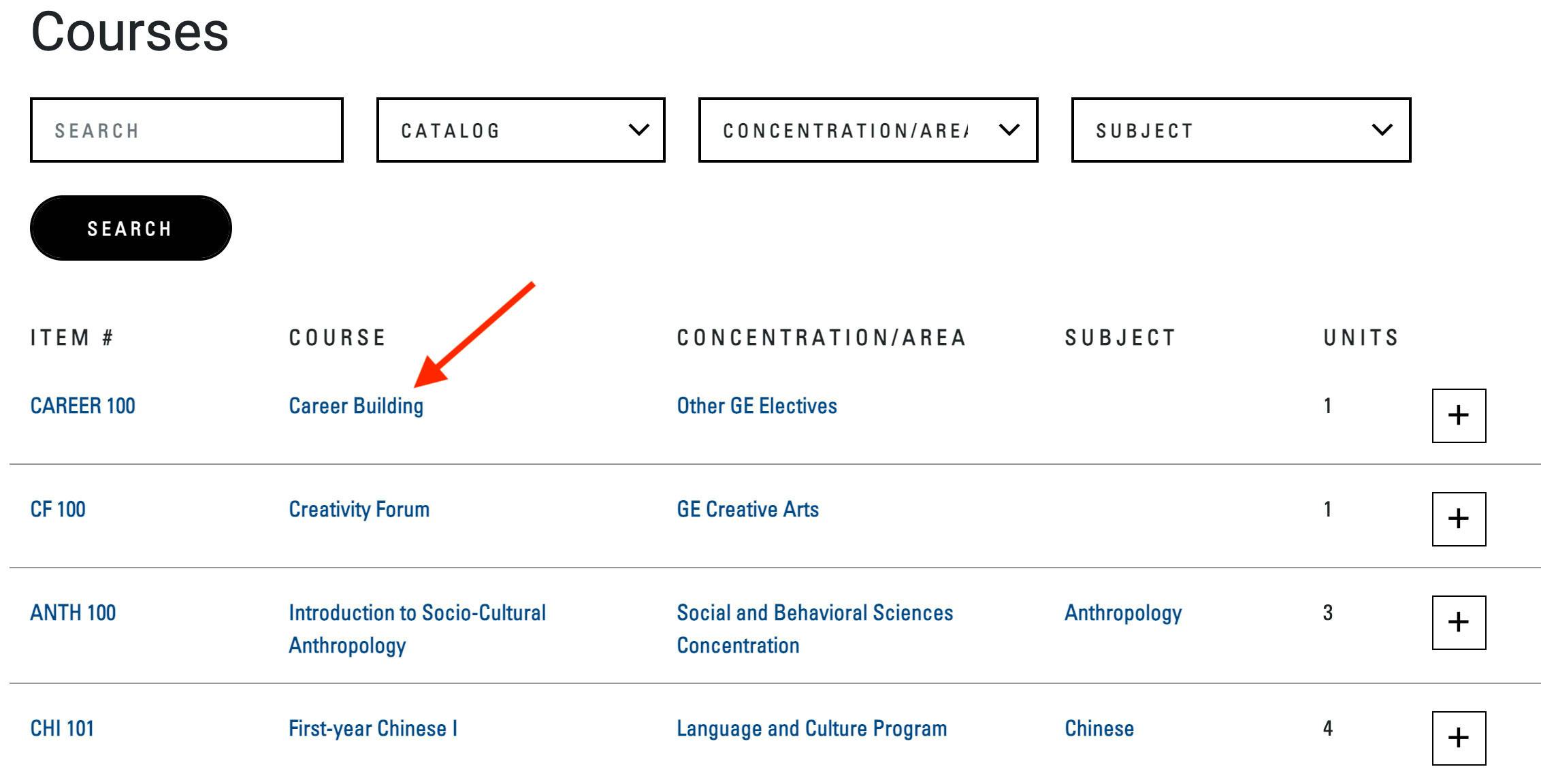
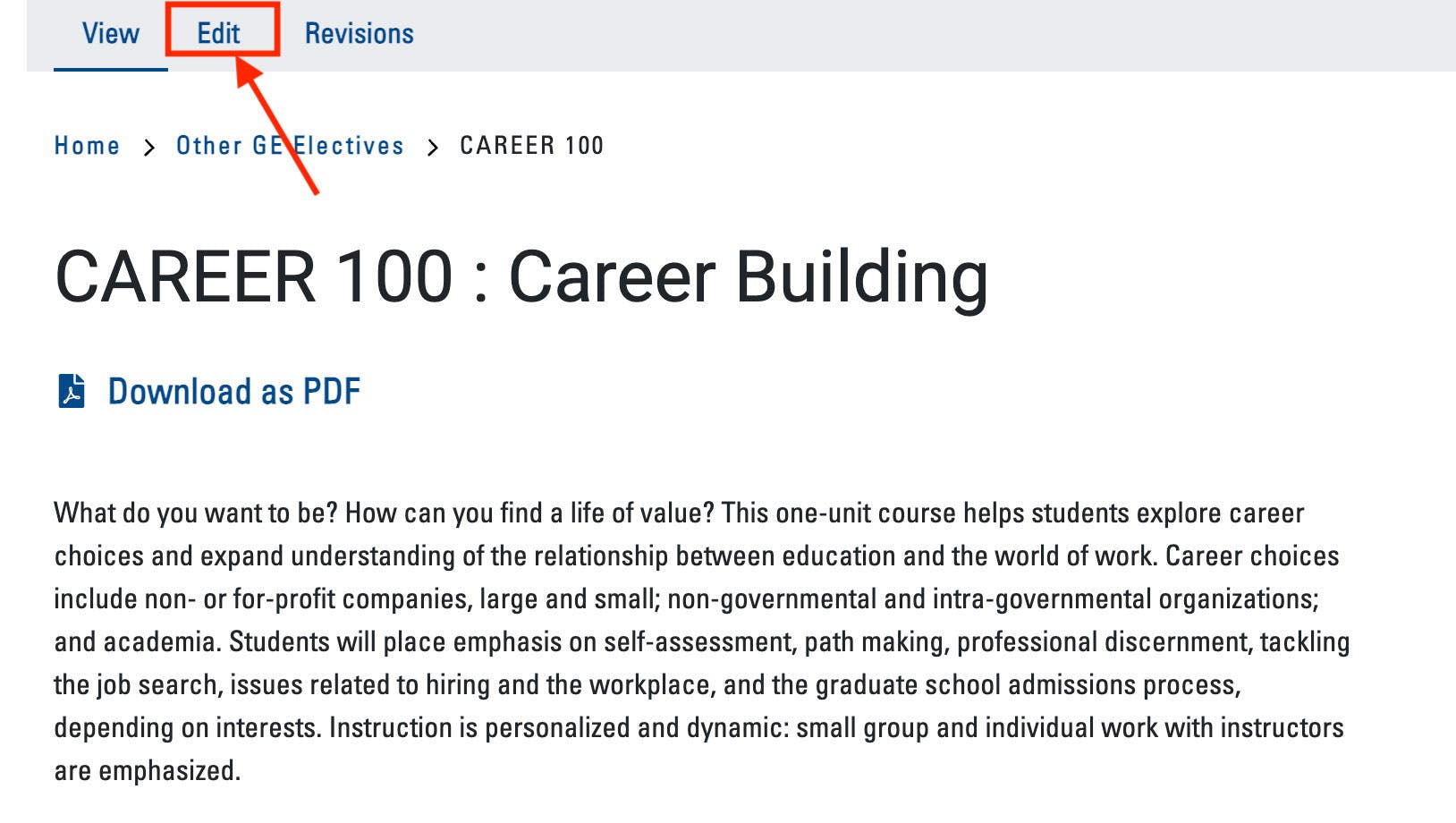
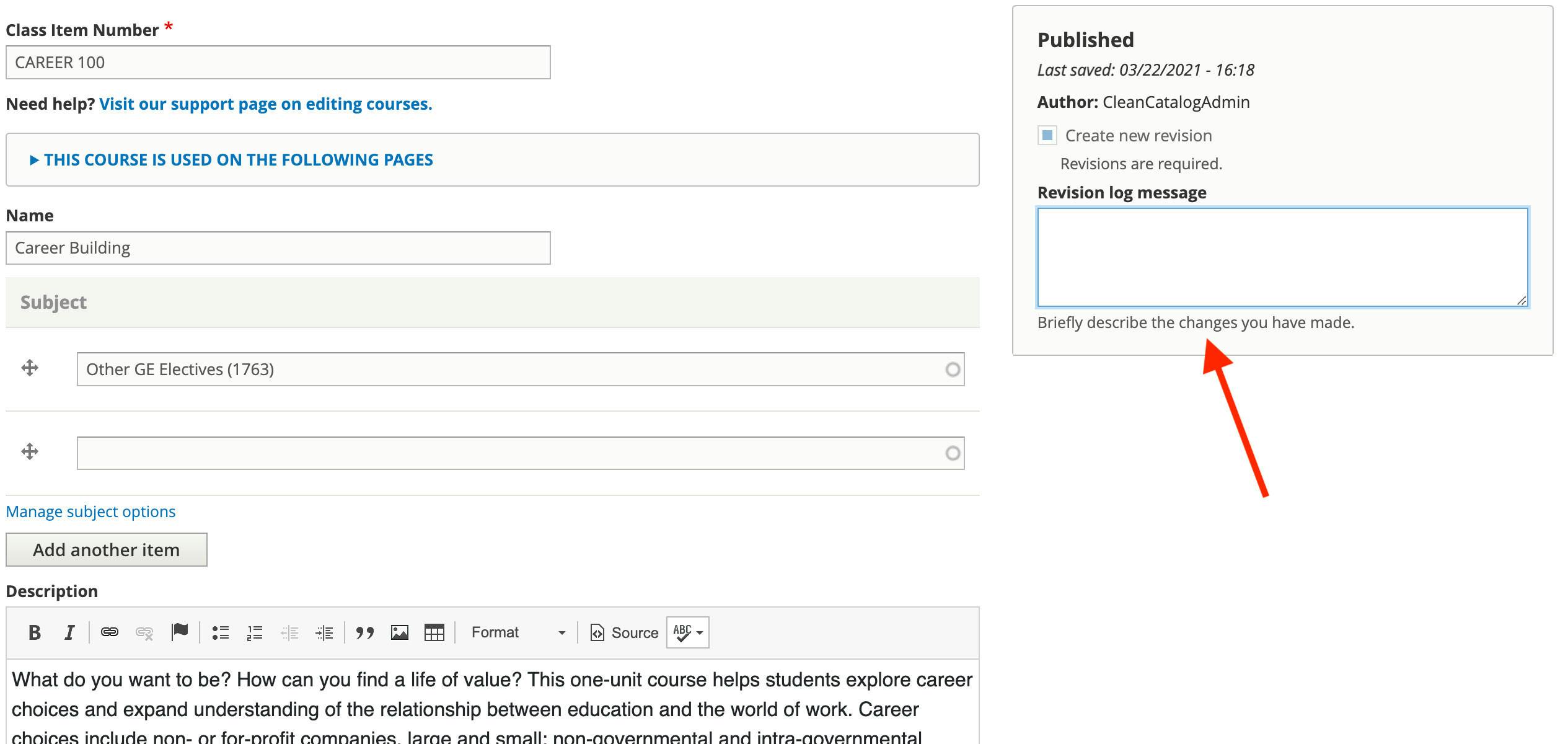
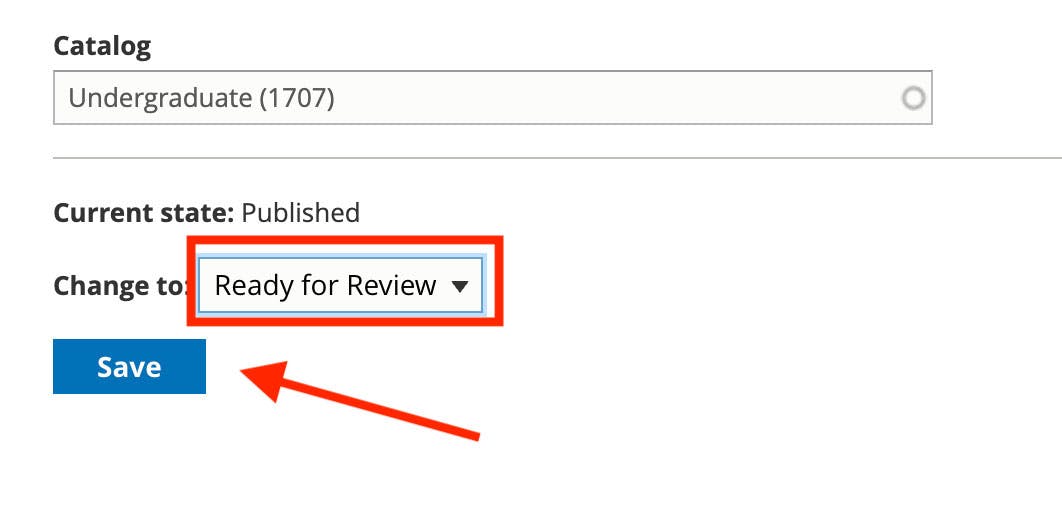
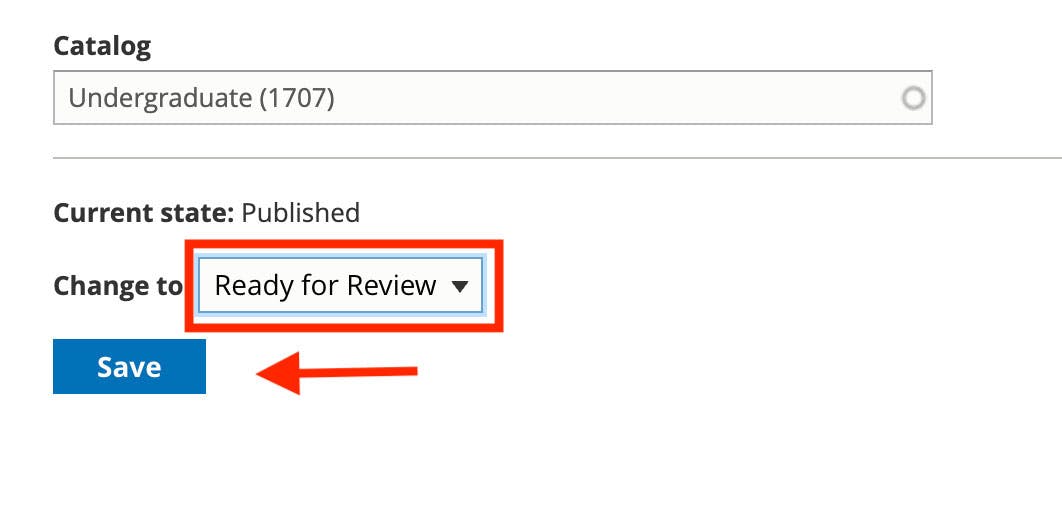
From the courses index page () find course you want to edit or update. Click on title of course to edit.From course detail page, click edit:Make edits in fields that need adjusting. Describe changes in Revision log message to make note of edits that have been made, making it easier for other editors to track changes. Save changes by clicking the blue Save button at the bottom of the page.Save in Draft until you have completed your edits. When you have completed your edits and (if necessary gotten final approval from your department head, director or supervisor), change the drop down above the Save button to Ready for Review and click the Save button.
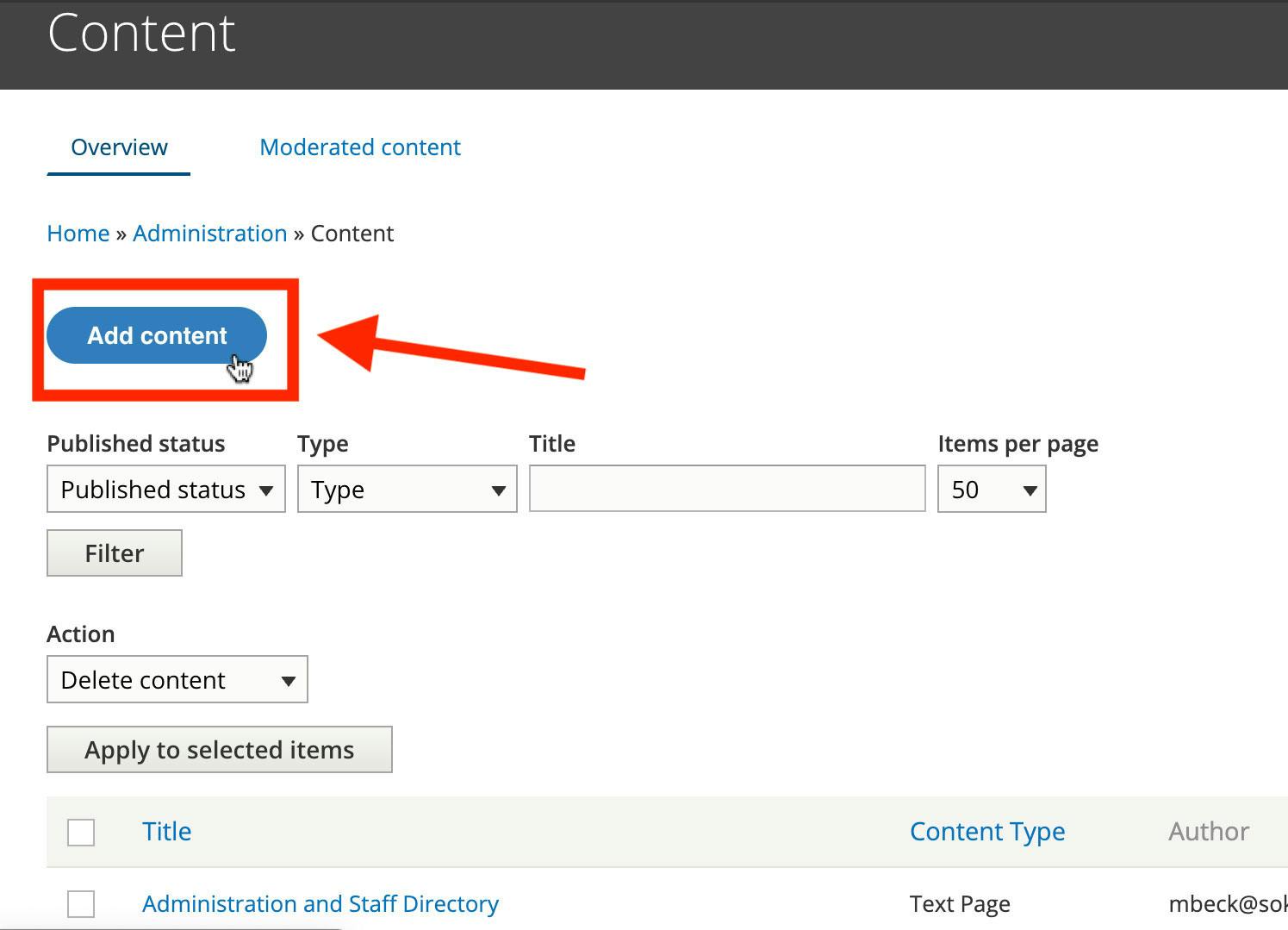
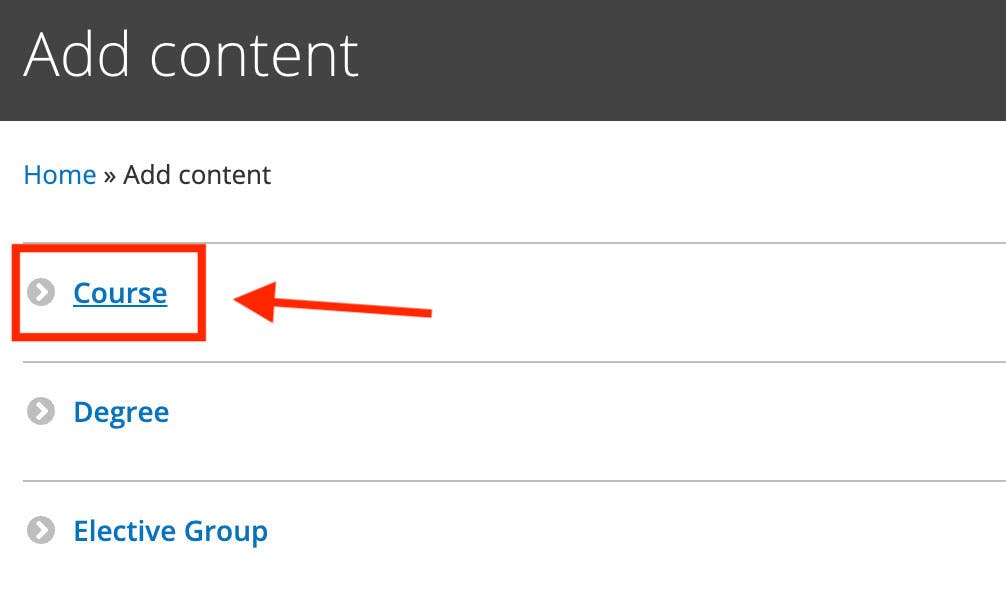
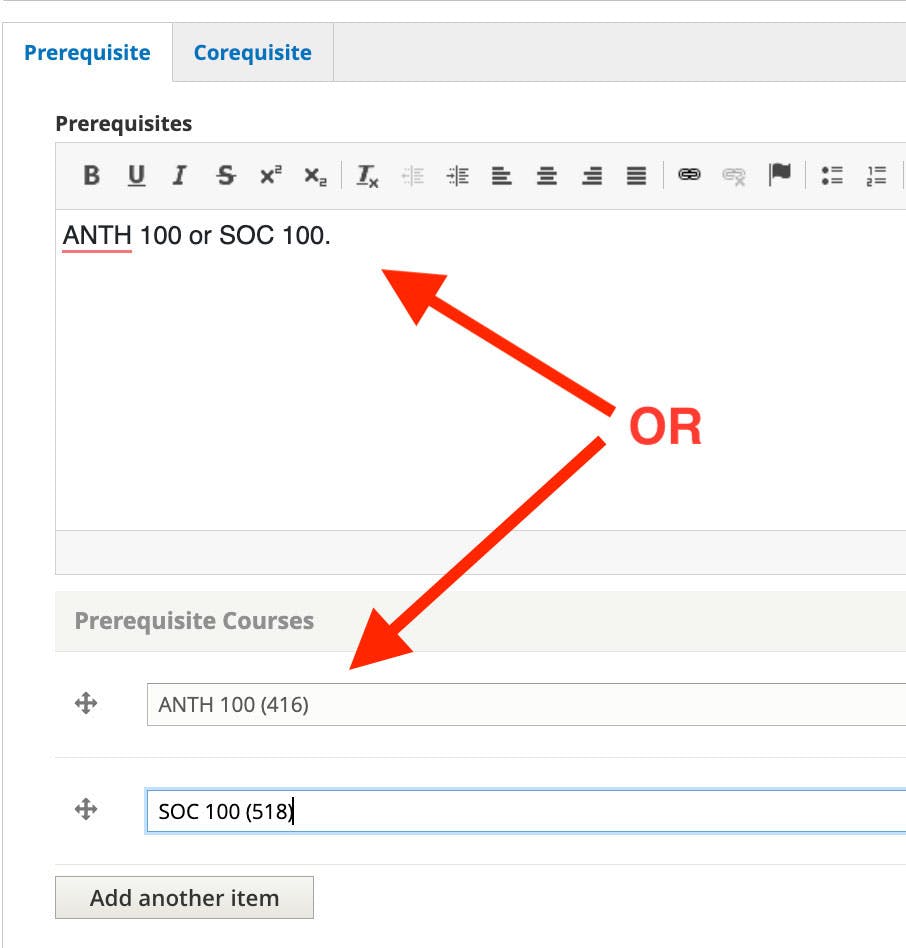
Click the Content link in the upper left-hand corner of the page. Click Add content buttonClick CourseFill in Course information. If your course belongs to a certain Concentration or GE Area/Program, fill in whichever applies. Please also enter a Subject field related to your Concentration or Program. When writing descriptions, please be aware that pasting from other platforms instead of typing directly will end up pasting the formatting as well.If you want to only copy the content and not the formatting, we recommend copying the content and pasting it into the “source” area of the text editor. This is the same content from Microsoft Word, pasted into the source section instead. For prerequisites, you are able to either manually type in the information or use the automatic links to the courses in the online catalog. When you have completed your final edits, switch the state dropdown to Ready for Review and click the Save button.If you need assistance while making edits, please don’t hesitate to reach out to the web team at sokaweb@soka.edu.
Share
Explore
SUA Course Catalog: Editing Tips
Access
Editing Courses

Adding a Course



Want to print your doc?
This is not the way.
This is not the way.

Try clicking the ··· in the right corner or using a keyboard shortcut (
CtrlP
) instead.